
Interface tour
Use the navigation to open a page, the top bar to search or refresh, and the page tabs to change views. Hold, Apply and Save have different write scopes.
This page covers the standard edition; for doona lite, see doona lite.
Find a page
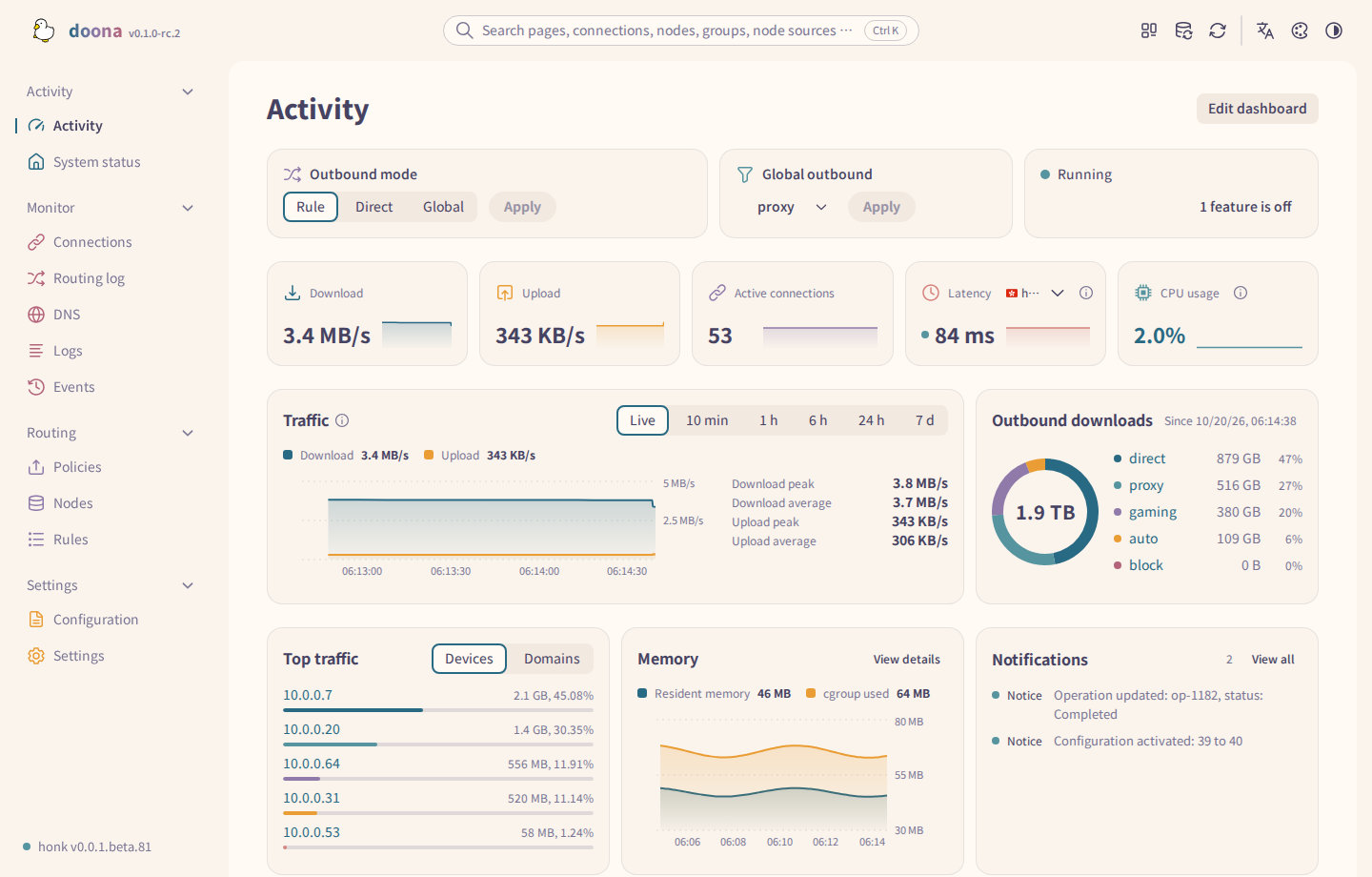
| Section | Pages |
|---|---|
| Activity | Activity, System status |
| Monitor | Connections, Routing log, DNS, Logs, Events |
| Routing | Policies, Nodes, Rules |
| Settings | Configuration, Settings |
Tabs and cards appear only when the backend provides them. A page the backend does not provide stays in the navigation and opens This backend does not provide this page; see feature requirements.
Press ? to open Keyboard shortcuts. Press g and then a page letter within 800 ms to open that page, for example g r for Rules.
Use the top bar
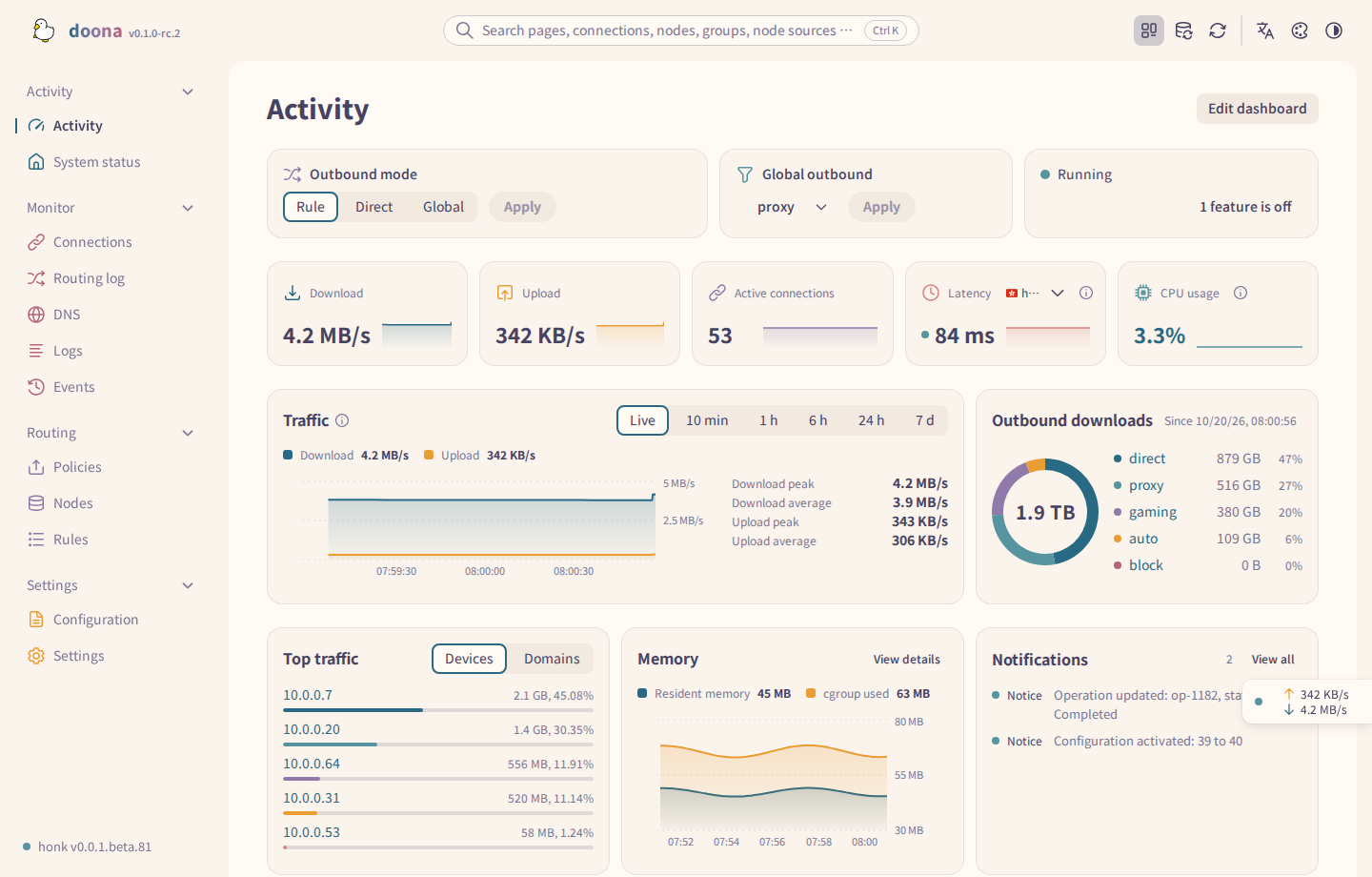
- Select the backend indicator at the bottom of the sidebar. A popover shows the engine and version, the connection state (for example Connected or Sign-in required), the API, the Backend URL and the profile. Select Edit backend to open the Backend card on Settings, or About doona for version details.
- Select the search field, or press
Ctrl K(⌘Kon macOS). Search includes settings fields and actions, persistentglobalsettings, configuration sections and feature entry points. - When rules are held, a check-mark button with their count appears. Its name is Apply N rule or Apply N rules, depending on the count; when several files are involved, the name also includes writes F files. Select it to write every held rule; see the held list.
- Select Reload honk and confirm in the Reload honk? dialog. honk reads its configuration files again and reloads; held rules are not written. The button appears only when the backend offers a reload.
- Select Refresh, or press
r, to read all displayed data from the backend again. A Data refreshed. toast confirms it. Refresh does not write anything and does not reload honk. - Select the Theme button to switch between light and dark. When the theme follows the system, it switches to the opposite scheme; the next press returns to System. The Language and Palette menus sit beside it. Palette lists one line per palette and ends with Appearance settings, which opens the Appearance tab, where Wordmark is also set.
The held-rule apply button and Reload honk wait for each other: while one runs, the other is disabled.
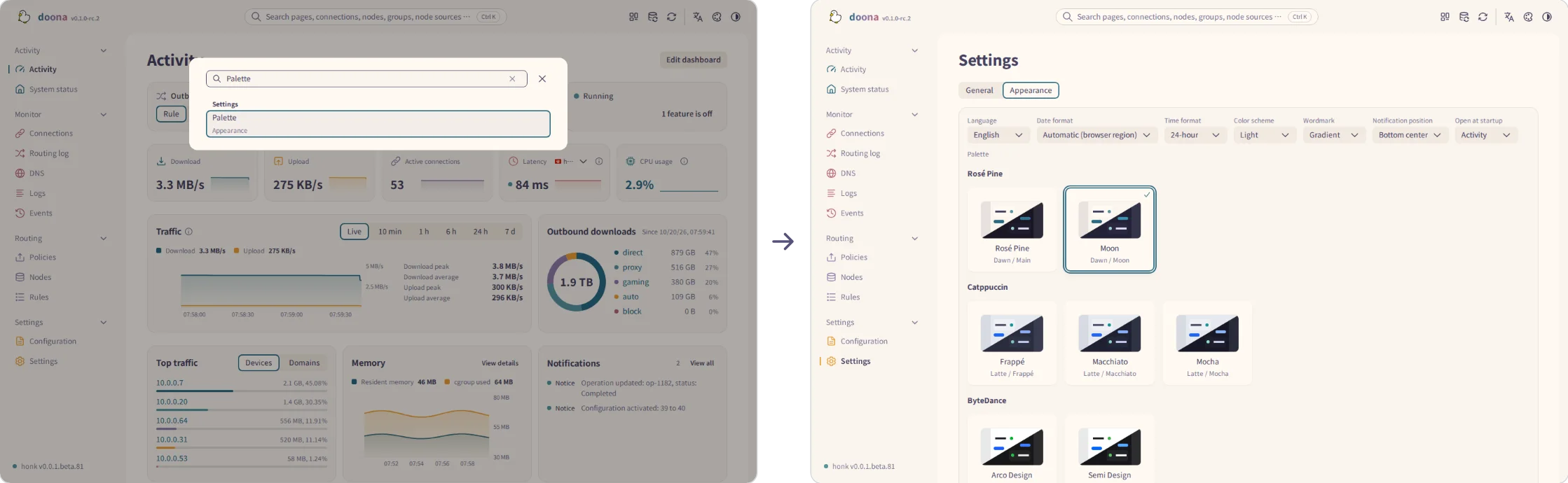
Search palette and select the Settings result to open the Appearance tab and focus the palette boxes. Selecting a result navigates to its control; it does not run an update, import or other action.
Use tabs, details and actions
- Select a tab under the page title to change the view within the page. The tab changes the view, not the page.
- Select a row on Connections, Routing log or DNS to open its details. In a window at least 1200 px wide, the details appear in a panel beside the list; in a narrower window they open in a drawer.
- On Connections and Routing log, use a row's add-rule icon to open the rule dialog. Disabled icons show a reason tooltip. A connection's detail panel also offers Add rule when available. The Routing log detail panel has no add-rule action.
- Open More actions (the vertical dots button) for the other commands. On a connection, these include Show matched rule, View flow, Trace this connection and Close connection; the destructive command is last.
- Close the panel with Close or
Esc.
On first load, tables show placeholder rows at the real row height; pages, cards, charts and forms show placeholders matching their contents. Sign-in and search keep a spinner. A button waiting on the backend replaces its label with a spinner after one second and keeps its size.
Searchable pickers keep the search field visible while only the options list scrolls.
Page tabs and the Policies kind switch use medium segmented controls: 32 px high with 14 px labels, like the other segmented controls.
Enter submits the sign-in form, runtime settings and the node, subscription, check, profile name, custom geodata URL, rule and routing template dialogs, just like their main button. While a dialog is open, toasts appear at the top center regardless of Notification position, and the dialog starts below them.
Hold, apply or save

Hold keeps an observed rule in this browser session; reloading drops it. Apply validates, writes and reloads each target file separately, either immediately or from the held list; a partial failure leaves unwritten rules held, and existing connections keep their route until they reconnect.
Runtime Apply changes honk's running values without writing files. Backend profile Save stores the profile in the browser and reloads the page; widget Save and dashboard Done store only browser layouts.
Floating widgets
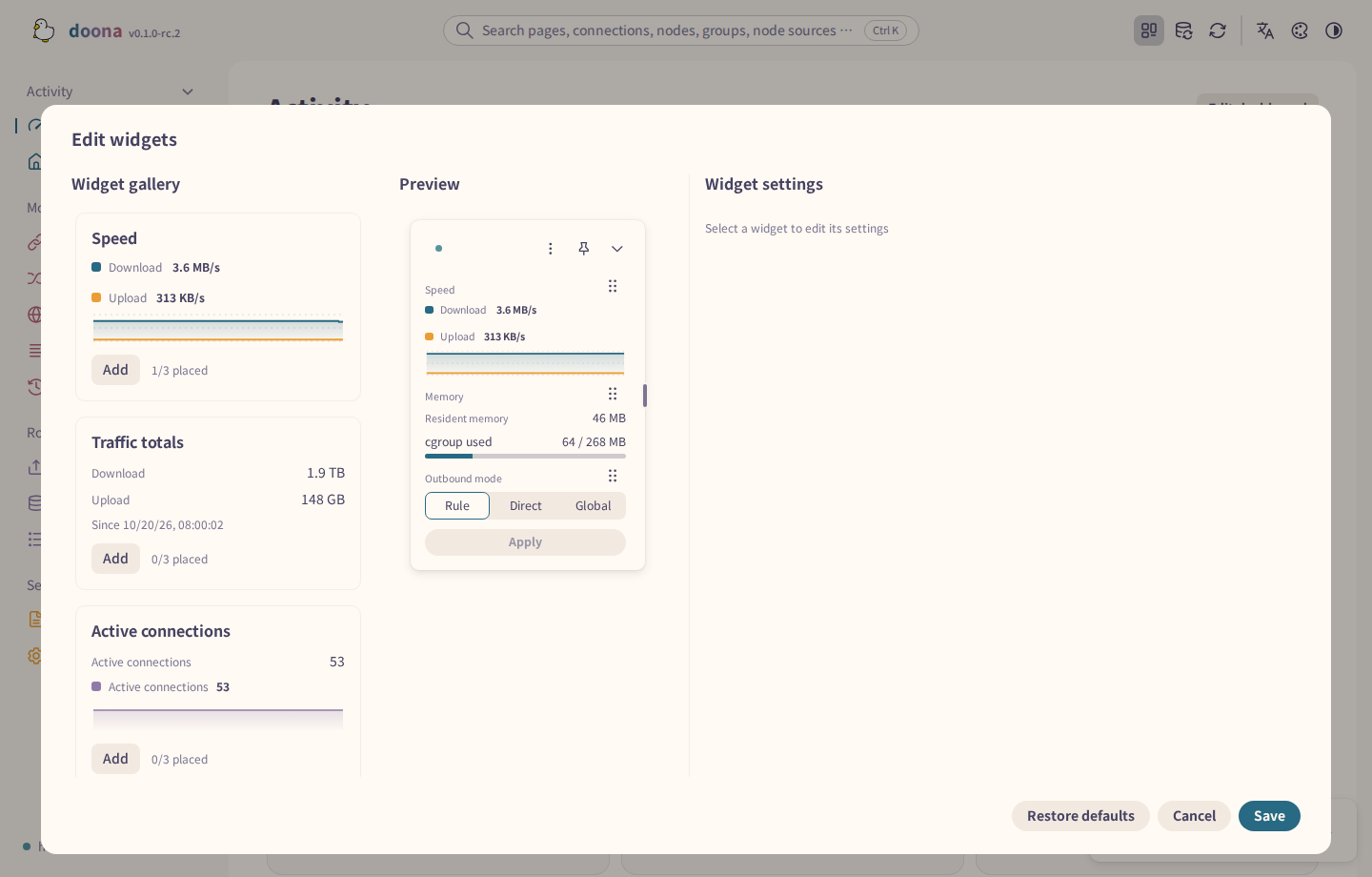
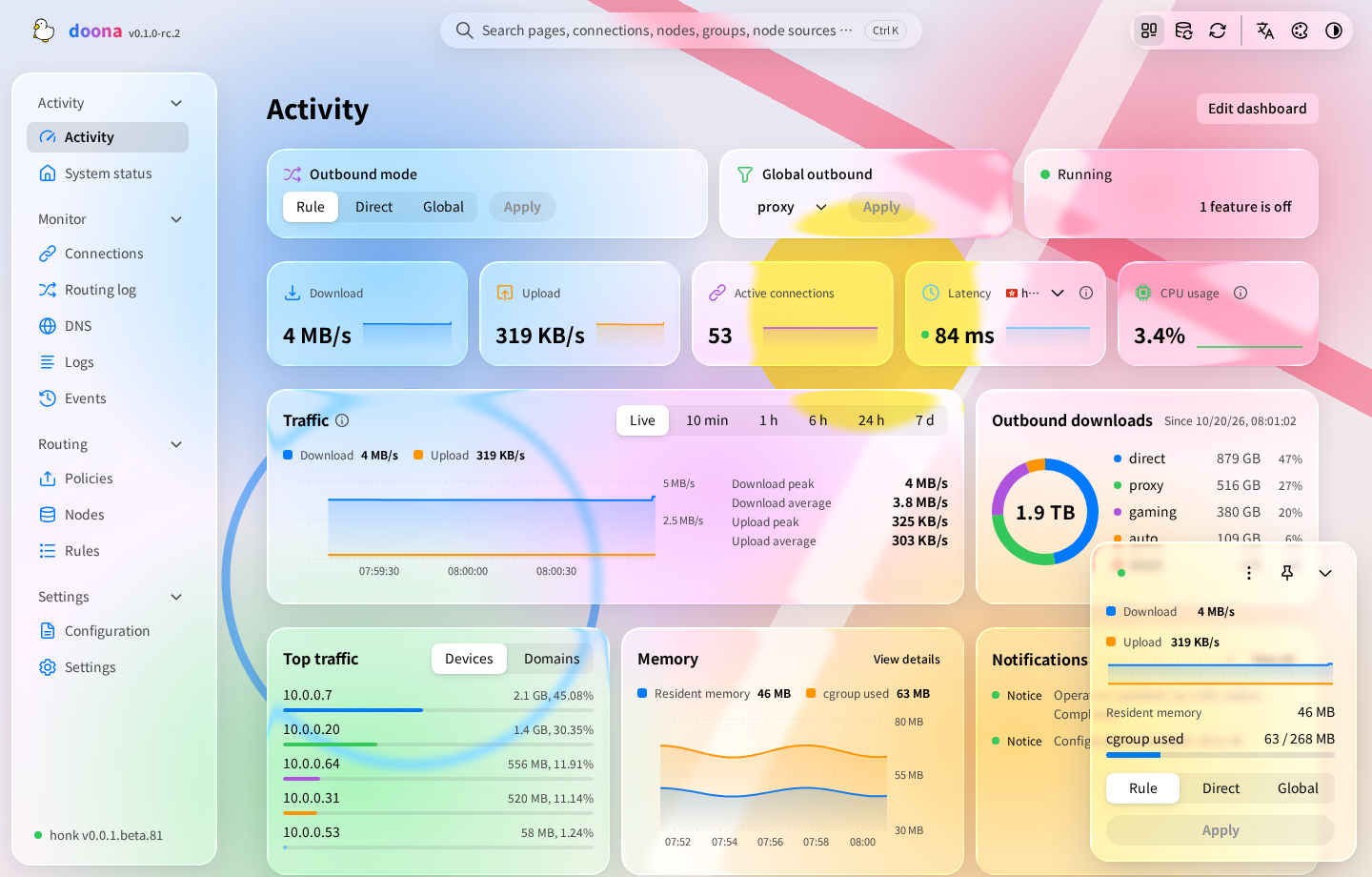
The preview reads live data and scrolls independently of the gallery and settings. Save keeps the layout in this browser only.
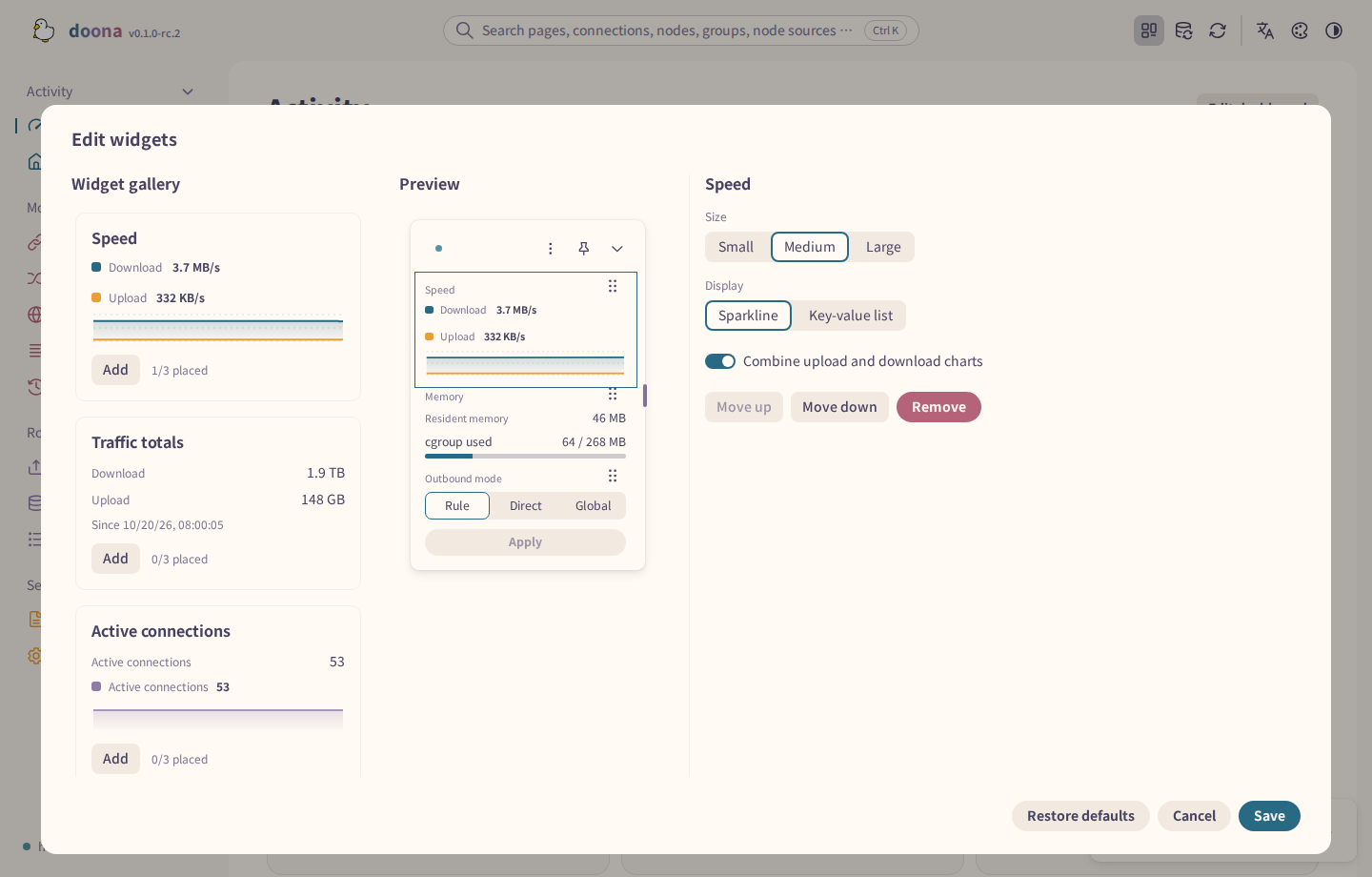
Select a Speed widget in Edit widgets. Combine upload and download charts is now in that widget's settings, not Panel options. Turn it off for two charts; each instance keeps its own choice, including previously saved split charts.

The panel starts unpinned and open. Pin panel locks its position and size: you cannot drag it, move it with arrow keys, resize it or drag it into the sidebar. Unpin panel restores those actions. An unpinned panel collapses when you change pages; Hide at edge works only while it is floating and unpinned.
The docked header has no title. Undock replaces the pin button there and is no longer in Panel options.
An unsized floating panel is 280 px wide and can be resized down to 200 px. Narrowing it from a side or by keyboard lets its height grow with the content, up to the window height, without cutting off Apply. Resizing its top or bottom edge keeps the chosen height even if the pointer drifts sideways. The Glass palettes draw it as glass.
A narrow collapsed panel keeps both rates visible beside its buttons. The edge-hidden handle keeps spacing around its rates and controls.
See Widgets for display forms, quota and memory meters, and wide-card statistics.
Check that a change took effect
- Read the toast after the write. A rule write shows New rule is in effect, Rule change is in effect, or N rule is in effect / N rules are in effect after applying held rules, depending on the count.
- Read the toast detail: Existing connections keep their current route until they reconnect.
- To check the new route, open Connections and inspect a connection opened after the change.
If a write fails, the toast shows the reason, and held rules that were not written stay held. Copy error copies diagnostic details from a failure or unknown-result notice. Settings > About offers Copy recent errors for the last 20 errors kept in memory, excluding secrets and request bodies. For a read-only configuration file, see troubleshooting.
Navigate on a phone
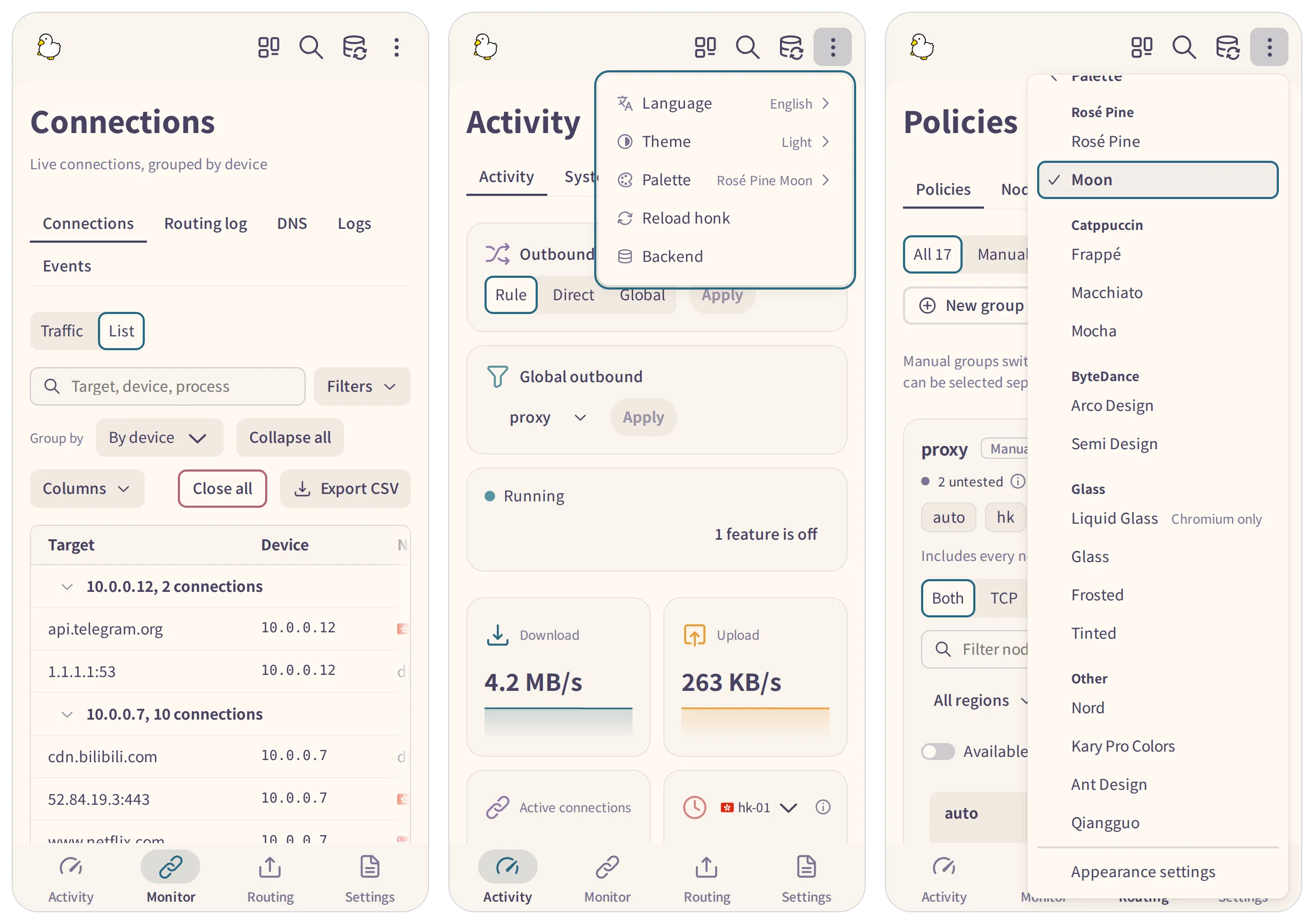
Below 1024 px wide, a bottom bar and a page strip replace the sidebar. Each section reopens the page you last visited in it during this browser session. Search, Refresh and the held-rule apply button stay in the top bar; the other top-bar controls move into More options, and a page toolbar keeps only its first action as a button. The phone’s Palette submenu also ends with Appearance settings, opening the Appearance tab.
Below 600 px, pages use phone padding and wrapping. At 600 px and above, they use the wider layout.
For installing honk and doona, see the installation guide; for the configuration file, see Configuration.