
Config and settings
Configuration reads, validates and applies honk's configuration files. Settings manages backend profiles, temporary runtime overrides, geodata, appearance and latency probes. Activity's Getting started card links to the setup steps.
This page covers the standard edition; for doona lite, see doona lite.
Open the Configuration page
- In the Settings hub, open Configuration. The page appears when the backend provides configuration or backup and revision capabilities.
- Read the line above the tabs. Config version identifies the configuration in effect and changes when changed content takes effect. Next to it, a status shows No diagnostics or the number of errors or warnings.
- If the line also shows Listener secret values are redacted, the backend hid those values in the text it returned.
- Choose Modules or Config files. Global settings appears for an engine whose settings doona knows. Backups and revisions appears when the backend offers configuration export, import or revision history.
Without a tab specified in the link, the page opens on Modules, even when the main file is empty. It opens on Config files when the link selects a source or the backend did not return the main configuration text. For the file format and the roles of the main file and its includes, see Configuration.
To add a subscription, open Nodes and choose Add subscription; see nodes and subscriptions. To apply a rule template, open Rules; see routing rules.
Config files
- Open Config files and choose a file from Config file. Each entry shows its kind: Main, Include, Subscription or Generated.
- Read the facts next to the picker: the number of lines and the size. Hover over them to see when the file was loaded.
- If the file cannot be edited, a badge next to the picker names the reason. The table below lists the badges.
- Press Download source file to download the displayed text. The export keeps the text as shown and may contain credentials, so review it before sharing.
| Badge | Meaning |
|---|---|
| Read-only | The backend does not allow configuration writes; the badge's help says how to enable them, and Configuration describes config_write. Without that help, the backend refuses this file and gives no reason; see read-only sources. |
| Contains secrets | The file holds a listener secret, so the backend does not write it back. Move the secret into its own included file to edit the rest. |
| Redacted | The backend hid part of the file. Writing it back would lose those values. |
| Subscription | The file is downloaded from a subscription URL and replaced when the subscription updates. |
| Generated | The engine generates the file and overwrites it when it regenerates. Change the configuration that produces it instead. |
Typing into a read-only file shows the notice This file is read-only, once per file.
Edit and apply a source
- On Config files, choose a writable file with complete text and click its text.
- Type your change. A Not applied badge appears, and reloading or closing the page loses the change.
- If the backend supports validation, doona checks the main file and its includes after a pause in typing. Press Validate to check at once.
- Review the draft diagnostics, then press Apply. honk validates the files, writes the change and reloads the configuration; a notice confirms the write and reload.
Press Cancel to drop the change. If validation finds errors, nothing is written and the errors appear in the list. If the change touches a setting that takes effect only after a restart, nothing is written either. The notice lists those settings and the restart command; edit them on disk and restart honk.
If the file changed on disk while you were editing, an alert says so and Apply stays disabled. Press Keep changes, then Apply, to write your text over the new file; or press Cancel to drop your change and load the new text.
To create an included file:
- On Config files, press New file. The button appears when the backend allows creating writable files.
- If an include pattern of the main file sets the directory and extension, enter only the file name in Name; when there are several patterns, choose one from Include pattern first. Otherwise enter a path relative to the main configuration's directory in Path; it must end in
.dae. - Press Create. The new file starts empty, the configuration reloads, and the file opens on Config files.
If no include pattern of the loaded files matches the path, the dialog warns that the backend will refuse the file.
An unconfirmed New file result is an information notice, not an error. The normal read-only hint in Global settings also uses the information level.
Validation and diagnostics
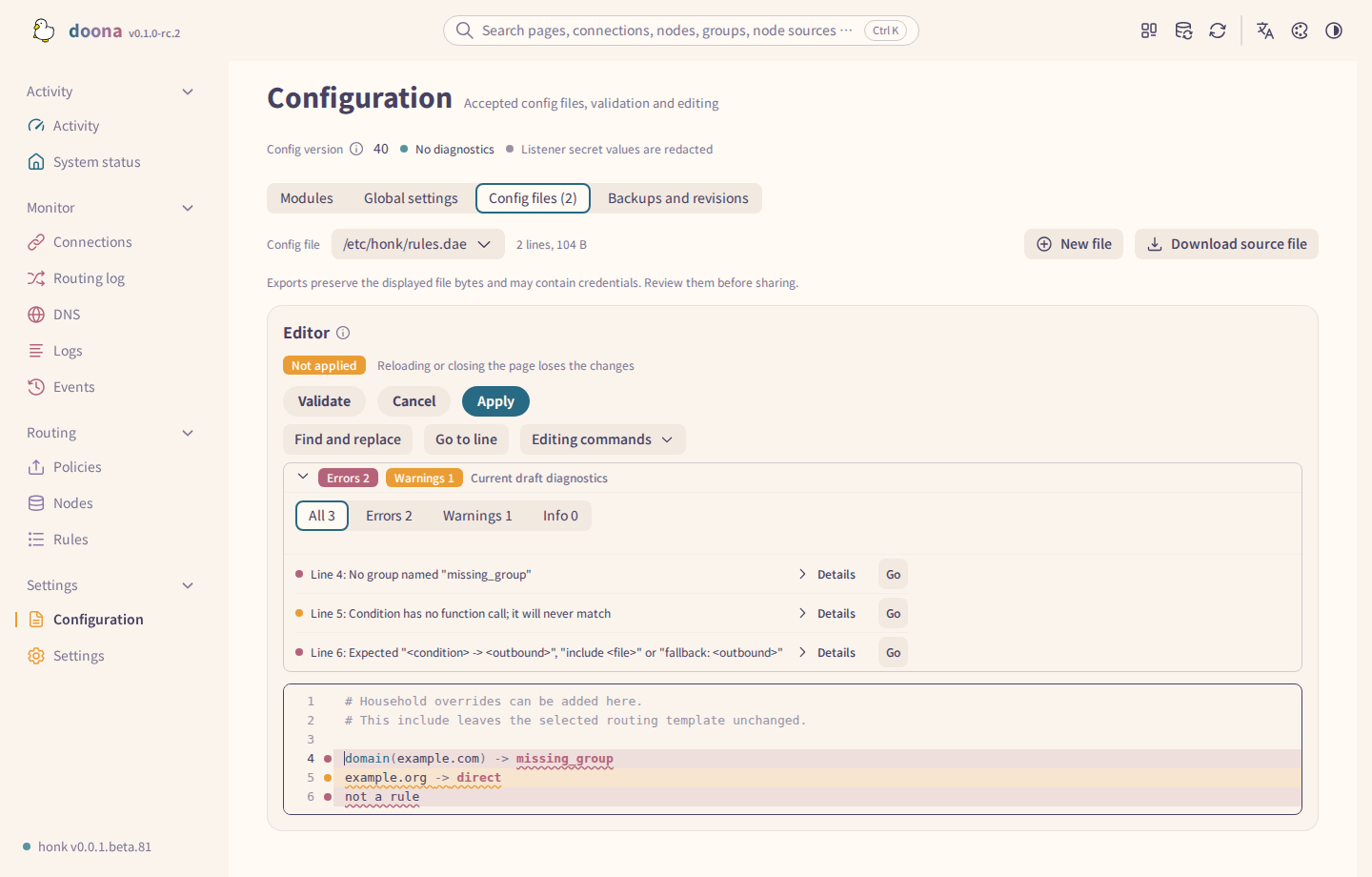
These diagnostics belong to the unapplied draft, not the accepted configuration. When the selected level runs out of items, the filter returns to All; Open jumps to another file.
The list shows diagnostics for the accepted configuration until a draft is validated. Validation needs the complete main file and include text. An applied change or a new accepted generation clears the previous validation results. Old links to Validation open the diagnostics on Config files.
Modules
- Open Modules. It shows one card for each
global,subscription,node,group,dnsandroutingsection, with its line range and one summary line. - Press Open page to open the section's editor: Global settings, Nodes, Policies, or the DNS or routing list on Rules.
Modules is an overview, not an inline editor. Edit whole files on Config files. A card for a missing section says so.
Global settings
- Open Global settings and choose a section from Config file. The picker includes
globalsections in the main file and includes; a main file without one can receive a new section. - Edit the offered fields for interfaces, dialing and TLS, node checks, logging, storage, bandwidth and preconnection. Each field shows its configuration key and any units or range. Not set uses the engine default; duplicate fields must be resolved on Config files. Transparent proxy and profiling ports use number fields with decrease and increase buttons; a port reads
8080, not8,080, and clearing it leaves it unset. A number typed below a field's minimum stays as typed until you finish, and whole-number fields do not accept a decimal point. - Press Write and reload to validate, write and apply the change. Discard changes drops the draft.
Only writable files with complete text can be changed. A file changed on disk blocks the save. A restart-required change is refused without writing and lists the settings to edit on disk. If the write succeeds but the new configuration cannot be read, the draft stays and Retry is offered.
With honk, Store subscriptions (global.store_subscribe) stores successfully fetched and accepted subscription bodies in the subscription_body table of <data_dir>/state/honk.db, normally /var/lib/honk/state/honk.db. Changing this setting requires restarting honk; a subscription with cache: false skips storage and recovery. Separate .sub files belong to legacy storage; see the pinned honk reference for startup migration.
Backups and revisions

Export downloads accepted source files; Import reads honk's server-side startup tree selected by -c, not a local upload, and Restore uses a revision's snapshot. Import and Restore validate and apply after confirmation; open a revision row to review its metadata and source SHA-256 values before replacing the current configuration.
Unlike Export configuration, Download source file downloads only the displayed file. Exports omit listener secrets but may retain other credentials; review them before sharing.
If an accepted import or restore has an unknown result, reopen this tab and use Refresh to check its operation without sending another write. A changed database head requires review and confirmation again.
Settings page
In the Settings hub, open Settings. The page opens without a connected backend, so you can correct the backend address there. It has two tabs, General and Appearance. General opens by default, with these cards in order:
- Backend
- Temporary runtime overrides
- Geodata, when the backend provides geodata
- Latency probes
- About
The Appearance tab holds the Appearance card, described below. #/settings?tab=appearance opens it directly; links and search results for an appearance setting also open this tab.
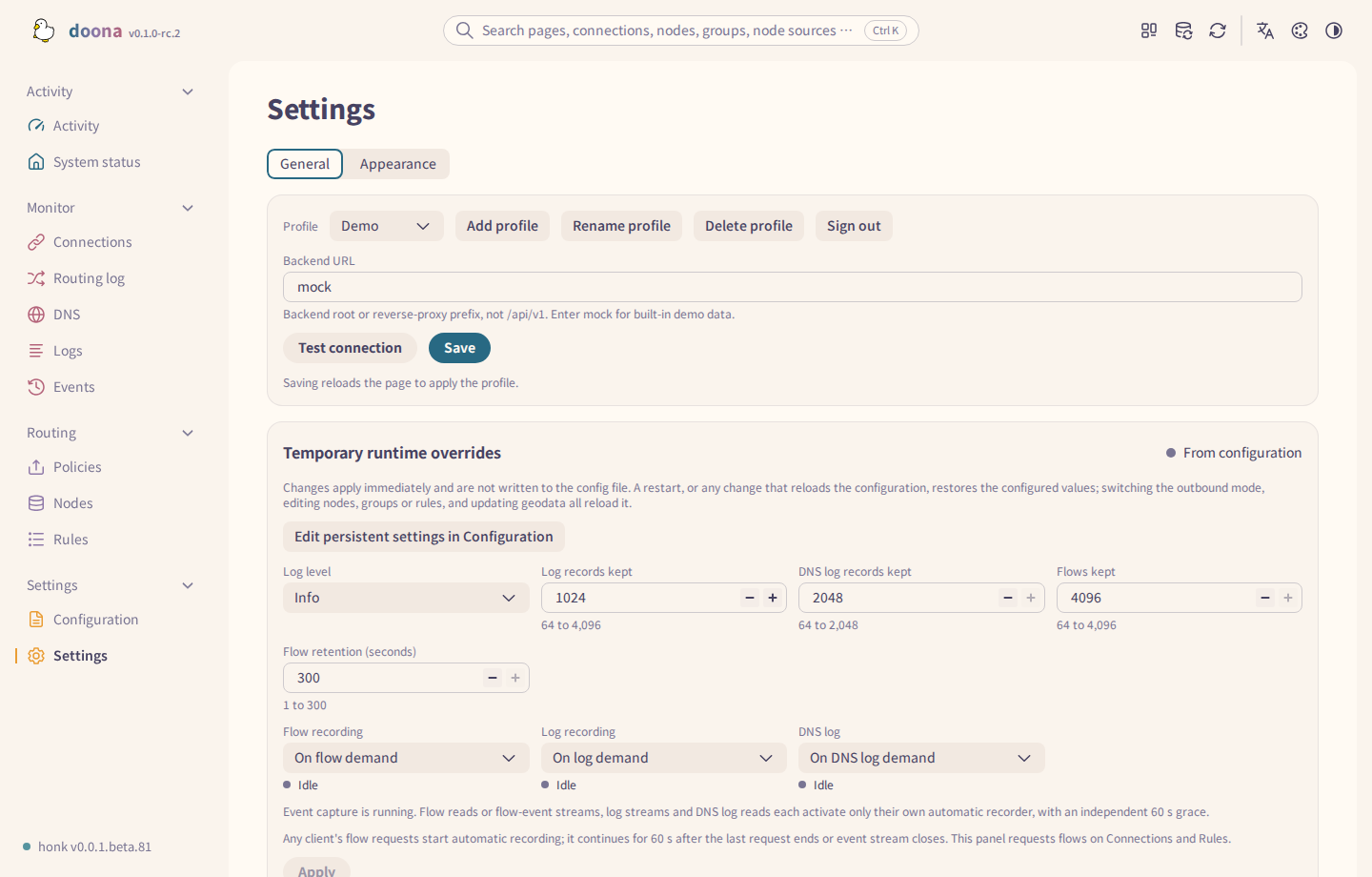
Backend
- Choose a profile from Profile to switch to it. doona saves the choice and reloads the page with that backend.
- Use Add profile, Rename profile or Delete profile to manage profiles. Each opens a dialog; confirming reloads the page. A new profile starts with the built-in demo data.
- Enter the Backend URL: the backend root or reverse-proxy prefix, not
/api/v1. Leave it empty or entermockfor the built-in demo data. - Enter the Token. A backend with password sign-in shows a note instead, and Sign out appears while you are signed in.
- Press Test connection. The result reads Connected, API vN, or names the failure.
- Press Save. doona stores the profile in this browser and reloads the page to apply it.
Switching, adding, renaming or deleting a profile discards unsaved Backend URL and Token edits; the dialogs warn about this first. A pairing link fills in Backend URL and Token, which take effect once saved. Save changes doona's profile, not honk's configuration. If the test or sign-in fails, see sign-in failures.
Sign out also appears when the active profile uses a saved token. It removes the token from this browser, keeps the backend address and returns to sign-in; it does not revoke the backend secret. Password sign-out closes the session and also removes any saved token.
Temporary runtime overrides
- Read the badge next to the title: From configuration or Runtime override.
- Change the fields the backend offers: Log level, Log records kept, DNS log records kept, Flows kept and Flow retention (seconds). Each numeric field shows its allowed range.
- For Flow recording, choose On flow demand, Always or Off. For Log recording, choose On log demand, Always or Off. For DNS log, choose On DNS log demand, Always or Off. A status next to each reads Recording, Idle or Disabled in configuration.
- Press Apply. The changes take effect immediately. Discard changes appears while you have unapplied edits.
These options are not written to the configuration file. A restart or an accepted explicit configuration activation, including a no-op reload, restores the configured values. Rejected activation and provider or network refresh preserve the overrides. A recorder disabled in the configuration cannot be enabled here. If the options change on the backend while you edit, doona keeps your draft and says so.
Edit persistent settings in Configuration opens Global settings for values written to honk's configuration.
Geodata
Check geodata requirements before changing settings or updating files.
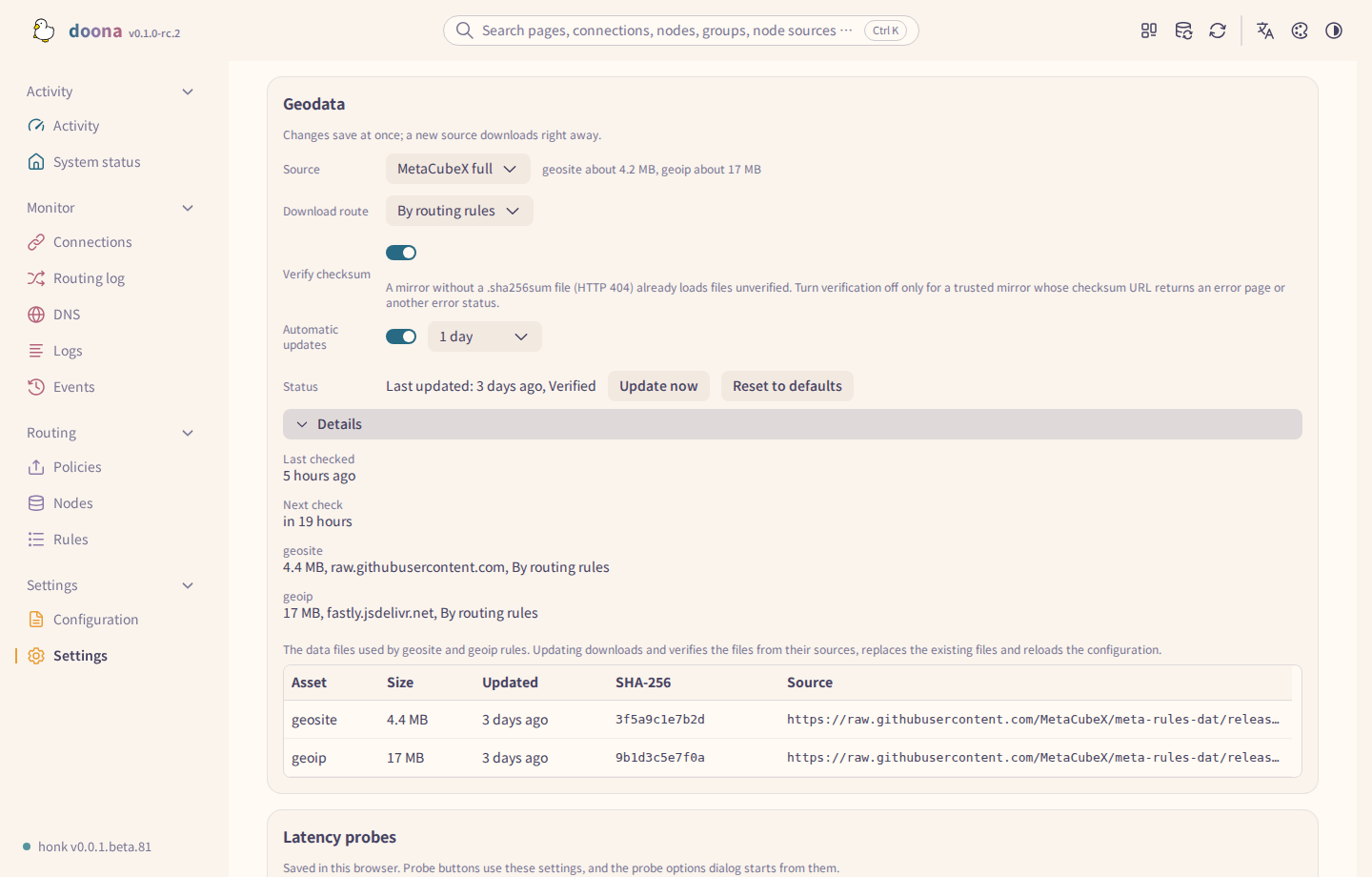
Reset to defaults asks first, then removes every override and every value taken from the configuration file. The file table shows even when sources cannot be configured.
Details lists Last checked and Next check, then each file's size, download host and route. The file table below shows each file's update time.
- Choose a Source: Loyalsoldier, MetaCubeX full, MetaCubeX lite or Custom. If the preset lacks categories your rules use, a dialog lists them before switching, because the backend refuses such a file on update.
- For Custom, enter the
geositeandgeoipURLs in the Custom URLs dialog and press Apply and update, or Apply. Each list takes up to four URLs, tried in order. Use URLs that serve the file directly; GitHub release download links redirect and do not work. Edit reopens the dialog later. - Choose a Download route: By routing rules, Direct or Specific group. For Specific group, choose the group; the route is saved then.
- Leave Verify checksum on unless a trusted mirror's checksum URL returns an error page or an error other than HTTP 404. A mirror without a
.sha256sumfile already loads files unverified. - Turn on Automatic updates and choose an Interval (hours) for scheduled downloads.
Each control saves when you change it. If the backend updates on request, a new source downloads at once; otherwise it downloads at the next automatic update. Download route and Verify checksum appear only when the backend reports them. If the card says the URLs come from the configuration file, honk writes those URLs back when it restarts. For failures, see geodata update failures and geodata sources.
Appearance
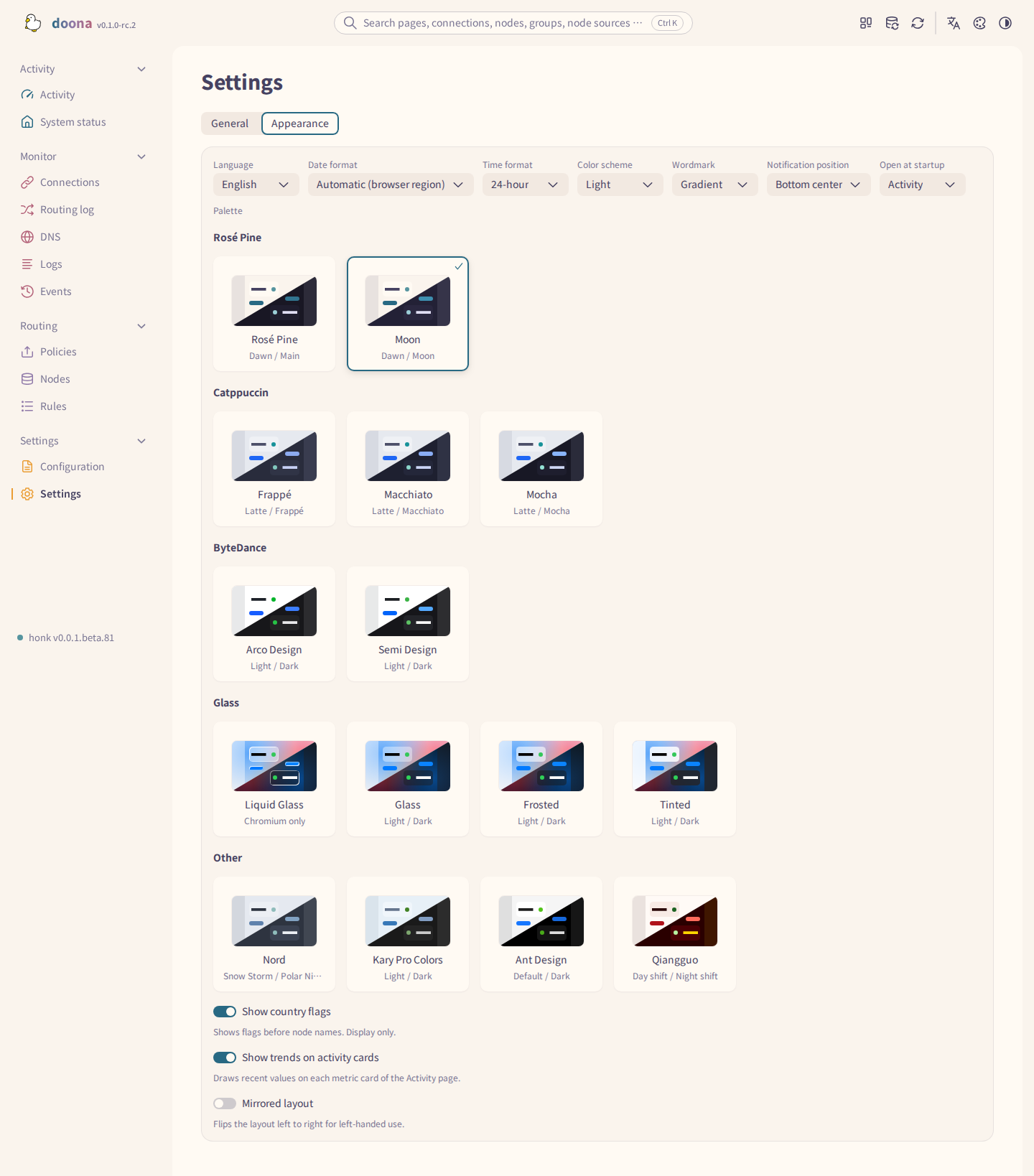
Choose Language, Palette, Color scheme, Wordmark and Notification position. Turn on Mirrored layout to flip the layout left to right. doona stores these choices in this browser; they do not change honk's configuration.
Date format defaults to Automatic (browser region); Day/Month/Year, Month/Day/Year and Year-Month-Day override the date order. Time format defaults to 24-hour; 12-hour uses the interface language's AM/PM words, and Automatic (browser region) follows the regional clock. Both apply throughout the pages, including chart axes and the log heatmap, and are saved in this browser.
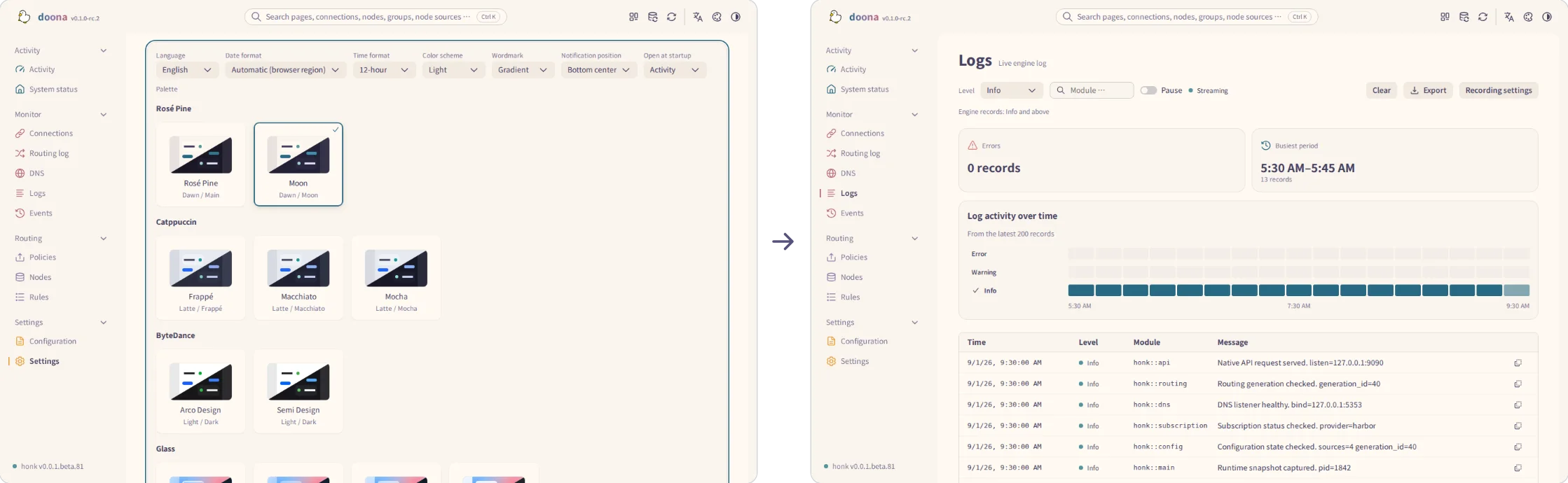
Palette shows each palette as a box with a small window drawn in its light and dark colors. The Glass section offers Liquid Glass, Glass, Frosted and Tinted. Liquid Glass refracts through the lens only in Chromium browsers; Firefox and Safari draw it as Glass, with blur and fill. Frosted applies one even blur to every surface. Tinted has nearly opaque surfaces and no blur. Liquid Glass Events and Logs tables retain blur, transparency and colour but omit refraction and the bright rim.
Reduce Transparency, Increase Contrast and forced colors make these palettes solid with clear edges.
A Glass material chosen with the earlier Settings switch carries over to its palette.
With a Glass palette selected, Wallpaper > Choose image replaces the wallpaper behind the pages and the sign-in page; Use default restores the built-in one. The image is scaled to at most 2560 pixels on its long edge and stored only in this browser's IndexedDB. If the browser cannot store it, it is kept for this session only.
Once you choose an image, Readability veil lays white over it in light mode or black in dark mode. It is on by default, and Dim sets its strength up to 60%, which is also the default. Turned off, the image shows as it is.
Blur scales the blur of every Liquid Glass, Glass and Frosted surface from 0% to 150%, with or without a custom image. Below 100% the surfaces' fill thickens so text stays readable. Tinted has no blur and shows no Blur control.
Show country flags controls flags before node names and does not affect routing. Show trends on activity cards controls recent-value sparklines on Activity's traffic, CPU and latency cards.
Open at startup chooses the page to open when the address has no page route. It defaults to Activity and saves immediately in this browser. A link to a specific page keeps its destination. Without a configured backend, an address without a page route still opens Settings.
Backend controls
Backend operations are on the pages that own them:
- System status has an action toolbar beside its status strip. Reload rereads honk's configuration; Suspend or Resume appears only when the backend provides it.
- DNS has cache deletion and Clear all cache. Cache rows have delete icons; cache and Resolution log rows have their own add-rule icons. These create a DNS request rule under Rules -> DNS rules -> Request rules, or a routing rule when DNS rules are unavailable.
- Nodes has Update N subscriptions.
- Connections has Close all, which closes backend-owned connections and skips kernel-direct connections.
The top bar's Reload honk confirms before reloading and does not write held rules; see the interface tour and held rules.
Latency probes
Choose Probe method, IP family, Measurement and Group probes. Measurement chooses Warm (reuse connection) or Cold (new connection); Group probes chooses Direct members or Every leaf node, including nested groups. Choices are saved in this browser. Probe buttons use them, and the options dialog starts from them. A node that cannot carry the chosen method uses a supported method and reports the fallback.
Trojan, AnyTLS and VLESS keep DNS UDP choices whose support depends on node configuration; backend admission failures remain visible instead of silently falling back to HTTP. A probe with no completed measurement can report result unknown, with the timeout, cancellation, unavailable address or local refusal explained. This does not establish that the node is unavailable.
Edit health checks in Configuration opens the persistent background check settings, including check URLs and interval. Those are separate from these manual probe preferences.
About
About doona opens a dialog with the engine, API and contract versions, the license and the privacy statement. Keyboard shortcuts opens the shortcut list. Guide opens this documentation in the interface language. Install as an app appears when the browser offers installation; Safari on iOS and macOS shows the steps instead. If the backend uses an API major version other than 1, a warning appears in this card.
Copy recent errors copies the last 20 API errors kept in memory for a bug report. Secrets and request bodies are omitted; reloading the page clears this history. Failure notices also offer Copy error for the individual request.
An empty read response or a read with no response is retried once before showing an error. Error details name the failed request and key response headers.