
Routing, nodes and rules
Policies manages group selection and membership. Nodes manages sources, subscriptions and probes. Rules edits routing and DNS rules and simulates routes with Trace.
This page covers the standard edition; for doona lite, see doona lite.
Policy groups
Open the Routing hub, then Policies. One card represents each group. Use All, Manual or Automatic above the list to filter groups by selection kind; each choice shows its count. The filter stays in the URL. A link to a group hidden by the filter returns to All.
Read a group card
- The card header shows the group name, its policy, and the number of available, unavailable and untested members.
- Use the pencil button for Edit group, or More actions > View configuration when the group is read-only. Check settings opens Check URL, Check interval, Tolerance and Idle timeout when supported.
- The member grid below shows each member with its state or latency. A group with more than 12 members adds Filter nodes, Region, Sort (By latency or By name) and Available only above the grid.
Member tiles keep the same column width across groups; a shorter group leaves the rest of the row empty. Long names wrap. A member that is itself a group shows the parent's latency sample for it, or the latency of the node its current selection resolves to.
Automatic groups start folded, showing their name, selected member and health. Select the summary to expand the card. A pinned group or a group opened by a link expands automatically. Back to automatic on a folded card clears both TCP and UDP pins. Disabled actions expose their reasons through help controls, including on touch devices.
Choose a member
- In a group with the Manual policy, choose a member in the grid. The group switches to it at once.
- In an automatic group whose backend allows overrides, choosing a member pins it. The state changes from Automatic to Pinned, and the toast says the automatic policy is paused.
- To end the pin, open More actions on the card and choose Back to automatic. This item appears only while the group is pinned. The toast names the member the policy now selects.
- When the selector labelled Both, TCP and UDP is shown, choose the network first. With Both, a selection, a pin or Back to automatic applies to TCP and UDP; with TCP or UDP, it applies to that network only.
- Interrupt existing connections on switch, in Edit group or View configuration, sets whether switching members closes existing connections. After you choose a member in a Manual group, the toast says whether existing connections were kept or interrupted.
Test, edit and check settings
Test all, Probe with options… and Check settings are in the card's More actions; the pencil button opens Edit group.
-
Choose Test all to measure the group using Settings > Latency probes. A toast reports the available, unavailable and unknown counts and whether the selection changed. Probe with options… offers supported HTTP, TCP connect, DNS (TCP), DNS (UDP) or DNS (TCP + UDP) probes, an IP family, Cold and Include nodes in nested groups. The dialog starts from this browser's probe preferences. Unsupported methods fall back to a supported method and the toast names the change.
Trojan, AnyTLS and VLESS keep DNS UDP choices when support depends on node configuration. A backend admission refusal is reported, not silently replaced by HTTP. A timed-out or cancelled measurement, an unavailable address or a local refusal can leave the result unknown; this is not proof that the node is unavailable.
-
Choose Edit group to change Selection policy, membership and filters. When supported, Default member and Final outbound also appear. Apply validates, writes the group in its defining main or include file and reloads. A refused save caused by another configuration change retries only the fields changed in the dialog. Conflicting edits or a renamed group require reopening it. If the group is removed elsewhere, the editor stays open and says the changes were not saved.
-
Choose Check settings to change Check URL, Check interval, Tolerance and Idle timeout. Only the fields the backend lists as writable appear. Leave a field empty to use the global value or the default, then choose Apply. If the backend changed a value after the dialog opened, the field says so; applying again replaces it.
Default member is the member the group starts with. It appears only when Selection policy is manual; choosing an automatic policy leaves the file's default unchanged. Final outbound is used when no member is eligible. Both pickers support search. Default member lists the group’s direct members; Final outbound offers direct, block, groups and nodes, excluding groups that would form a cycle. None removes the corresponding default or final setting. Use the card's pencil button to open Edit group and these fields.
In Edit group, Interrupt existing connections on switch is staged until Apply. In View configuration, changing the switch writes immediately.
Arrange group membership
-
Use Edit group on a card, or New group above the cards. Both open the shared group editor.
-
Choose included regions, subscriptions, individual nodes or nested groups. Region choices start collapsed; select Regions to expand them, while selected region tags remain visible. The dialog previews Matching nodes.
-
Use a member's remove button to undo its inclusion. A node still matching another filter remains included; change that filter to remove it.
-
Add filter supports name and
subtagmatches. Add OR match joins alternatives; multiple conditions in one filter must all match. A custom expression stays editable as text. -
In New group, enter Group name and choose Selection policy and members. An empty filter includes every node, so explicitly choose the intended membership.
The Groups and Nodes pickers keep their search fields fixed and scroll only the option lists. Searchable menus and other pickers use the same layout; region checkboxes scroll with the dialog body.
-
Choose Apply to validate, write and reload, or Cancel to discard the dialog's draft.
Nodes and subscriptions
Open the Routing hub, then Nodes. The Nodes tab lists node sources: subscriptions, files and the nodes in the configuration. The Latency tab appears when the backend lists nodes.
With no subscriptions or proxy nodes, Nodes offers Add subscription and Paste node link. Add subscription in Activity’s Getting started card opens the subscription dialog directly.
Sources and nodes
- Node sources shows a card for each source with its kind, state, node count, update times, expiry and usage. A reported traffic allowance adds a quota meter below the usage. Update, edit and removal controls appear when available, beside the page's lead line and on the cards.
- Select a card, or use the arrow keys to move between cards and select a source. The node table below lists its nodes. Search nodes covers every source; Group and Protocol filter the table.
When the backend reports a node's configured transport, Protocol shows it in parentheses after the protocol. If the field is absent or null, the display stays unchanged. The Protocol filter still matches the protocol.
Expiry is shown to the minute, with seconds in the tooltip. Dates and times follow Date format and Time format; the default clock is 24-hour.
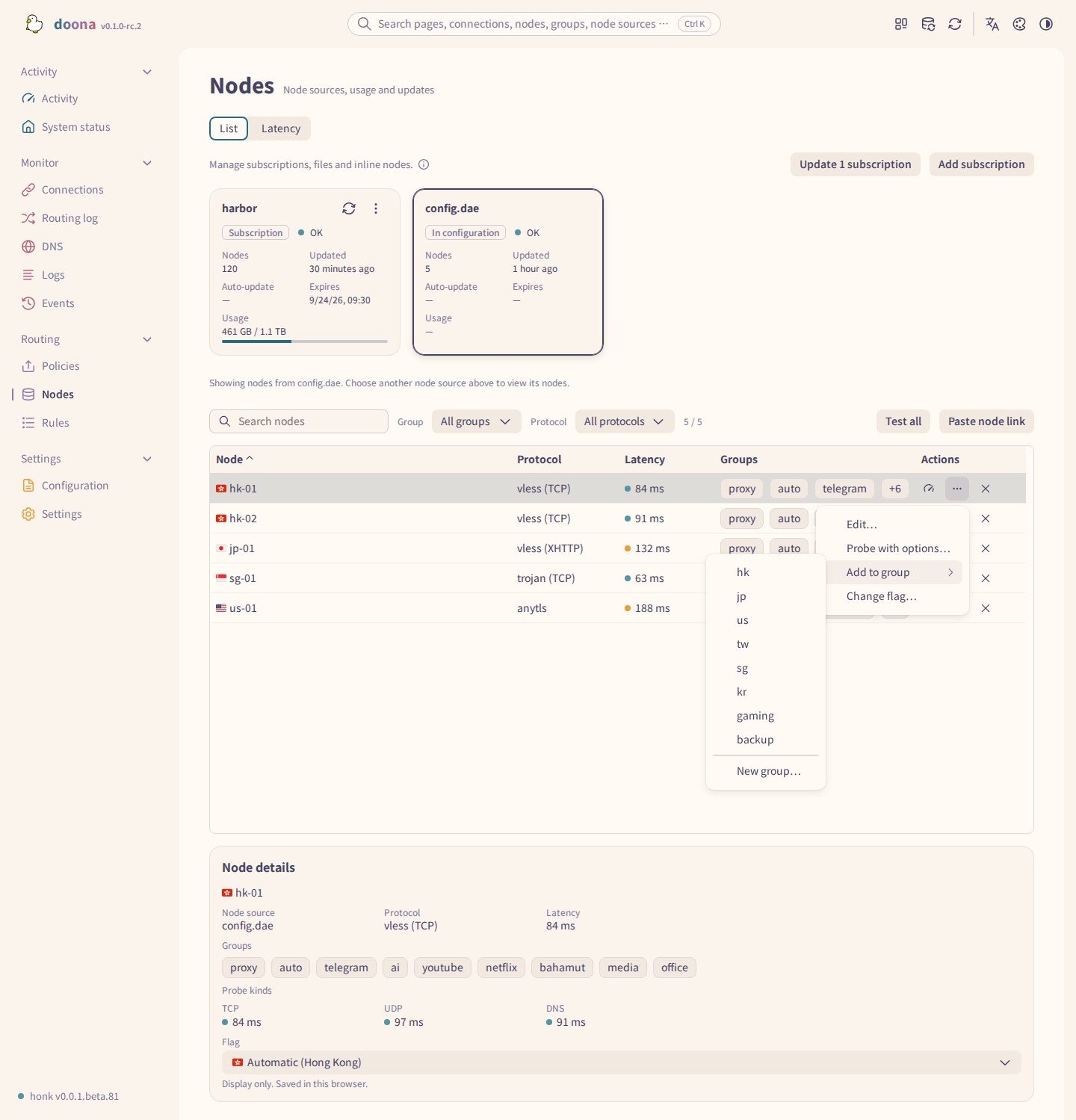
The test button uses Settings > Latency probes; Probe with options… offers what the backend supports. Add to group lists groups in writable main or include files and opens the group editor with the node staged; Apply confirms.
A subscription with no successful fetch and no reported error shows Not fetched. Stale means a previous fetch succeeded but the retained data needs updating. The Group filter and Add to group submenu support search for long lists. Group editing can still work from readable configuration when the runtime groups API is unavailable.
Empty file sources stay in Node sources with their status and a removal action when allowed.
Latency
- Open the Latency tab. The summary shows the lowest and highest latency and the number of unavailable nodes.
- The chart shows each node's Latest latency. When the backend reports them, it also shows Moving average and Average of the last 10.
- Use Group by to group the chart by Group or Protocol. Each group names its nodes that are unavailable or not measured.
- Choose a node in the chart to open it on the Nodes tab.
Add a subscription or a node
Adding or removing subscriptions and file sources requires the backend to allow source management; adding or removing individual nodes requires it to allow node management. Both need a writable main configuration; see read-only sources.
- Choose Add subscription. Enter a Name and a Subscription URL (HTTP or HTTPS). Depending on the backend, the dialog also offers Auto-update, User-Agent and Cache the subscription. A URL without a scheme gets
https://added when the field loses focus or is saved. An unusable URL is explained below the field. - Choose Add. The backend writes the subscription into the subscription section of the main configuration. The URL is stored and never shown again.
- A new subscription has no nodes until it is fetched. When the backend can refresh subscriptions, doona refreshes it at once, and the toast reports the node count. If that refresh fails, the toast offers Retry.
- To add a single node, choose Paste node link above the node table. Enter a Name and a Node link such as
vless://…, then choose Add. The node goes into the node section of the main configuration. An unusable node link is explained below its field.
With honk, paste a Trojan, VMess or VLESS share link to use XHTTP over H2 only. xhttp and its alias splithttp select this transport; supported modes are auto, packet-up, stream-up and stream-one. honk rejects unsupported options, including xmux and downloadSettings. See honk's XHTTP reference for link options and limits.
Refresh a subscription
- Choose Update {name} on a subscription card to fetch it now. Choose Update N subscription or Update N subscriptions, depending on the count, to fetch every subscription in one batch.
- A refresh fetches the subscription through its download route and applies the new nodes. It does not change the subscription's configured source.
- On success, the toast reports the node count. On failure, the last nodes that loaded successfully stay in place.
- If the download route has no usable node yet, for example because the rules send the subscription through a group of the nodes it has not delivered, the refresh fails instead of falling back to direct.
- To change how often a subscription updates, choose a value in Auto-update. Custom accepts a non-negative whole Interval and a Unit, such as Hours. doona writes the interval to the main configuration and reloads.
Edit a subscription
- Choose Edit {name} on a subscription card, where {name} is the subscription name. If doona cannot identify one writable entry, use Open config file instead.
- Change Name, Subscription URL or User-Agent. An empty User-Agent removes
uaand uses the engine default. Cache the subscription appears when the entry setscacheor the backend reports a cache default. Other options stay as written. - When Download route appears, choose By routing rules, Direct or a group. This affects fetching the subscription, not traffic through its nodes. Choosing By routing rules removes the explicit
route. - Choose Apply. doona validates, writes the file that declares the subscription and reloads.
Renaming can also update simple subtag(...) filters in the same file; keep the offered update switch on to retain those memberships. References in another file or inside an expression block renaming. Change those filters on Policies first.
Remove a source or a node
- To remove a subscription or a file source, open More actions on its card and choose the remove item. Confirm in the dialog. doona deletes the source and its nodes from the main configuration and reloads.
- Nodes written in the configuration have a remove button on their row. Removing one deletes it from the node section of the main configuration and reloads.
A subscription referenced by a group’s subtag(...) filter cannot be removed. The dialog names the groups and links to Policies; change their filters before removing it.
Subscriptions and nodes declared in include files cannot be removed here; the disabled action explains that they must be removed from their declaring file. Node actions > Edit… changes an inline node's link and name in its declaring source. Renaming updates exact node filters, default and final members, and DNS upstream detours in that source; references from another source prevent renaming.
Routing rules
Open the Routing hub, then Rules. DNS rules and Trace simulation appear when the backend offers them. Routing rules can also show templates with readable configuration even when the rules API is unavailable.
Rule templates
With readable configuration, Routing rules offers templates. When a rule list or flow records are also available, a Simple / Advanced switch separates templates from that list. Without an explicit view in the link, Simple opens, including for custom rules. Links that select or edit a rule, prefill a new rule, or review held rules open Advanced unless they explicitly select another view.
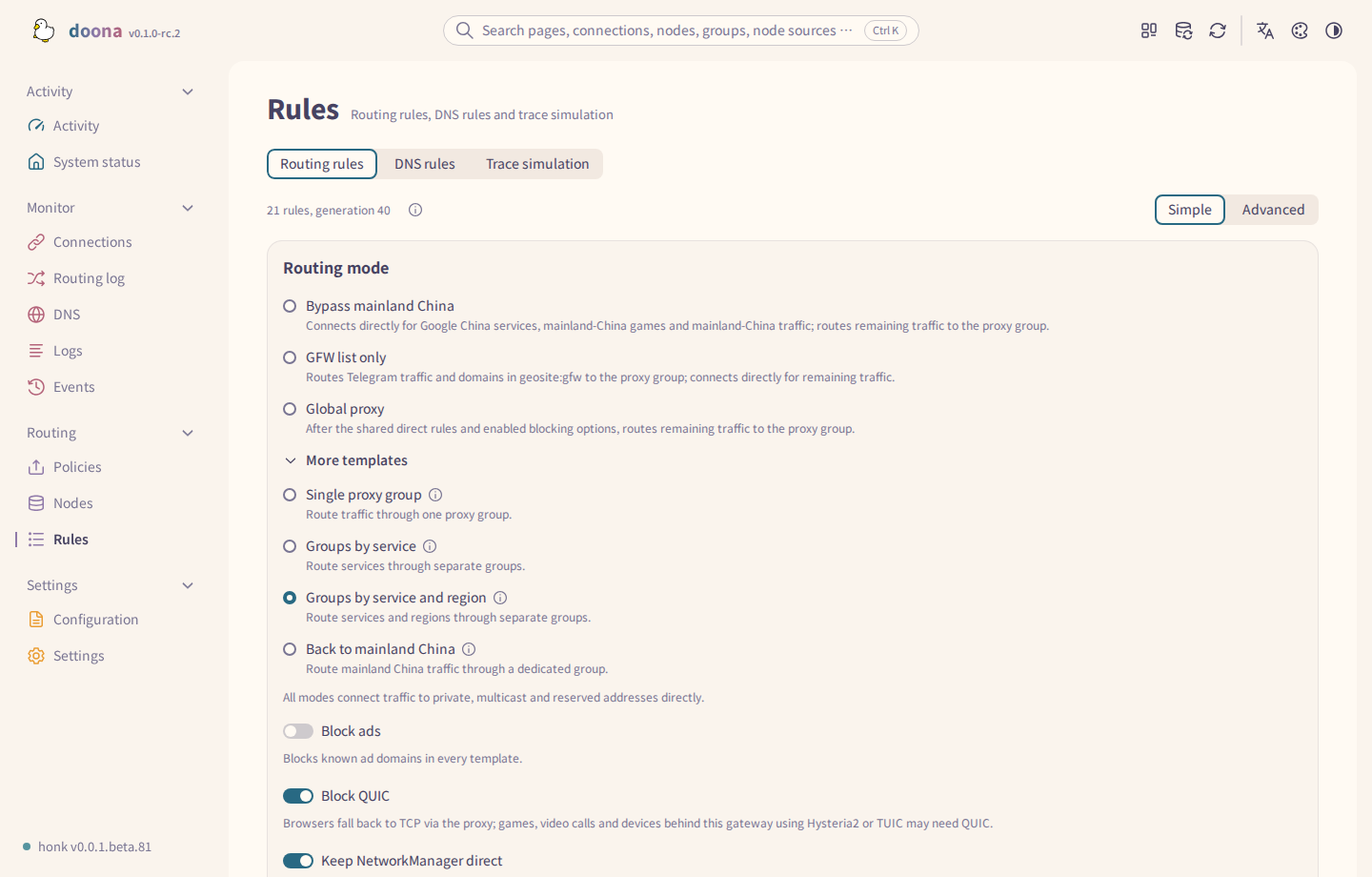
Use Simple for templates; the source actions shown below belong to Advanced and DNS rules.
Simple selects the detected template name when one file's top-level routing matches a template. Otherwise, the rules are custom: no template is selected, and a notice says the current rules match no mode. Routing spread over several files is also custom.
Routing-mode templates that use geosite: or geoip: require geosite.dat and geoip.dat; install them before applying the template, as described in Offline dependency errors.
- Under Routing mode, choose Bypass mainland China, GFW list only or Global proxy. More templates offers Single proxy group, Groups by service, Groups by service and region, and Back to mainland China.
- Change the template or its options, then choose Apply to review the confirmation dialog. It names the target file: the file containing top-level
routing, or the main file if none exists. - Review Groups to create and Existing groups used. Existing groups, including those declared in other loaded files, keep their settings; missing groups are added to the target file. A warning marks reused groups that select one exact node name or use a
fixedpolicy. A new group whose name matches a node gets a warning: rules using that name will reach the group instead of the node. - Rule files no longer included lists
includepaths inside the routing being replaced. Applying drops those statements, so their rules no longer apply through those includes; the files stay on disk. Expand Changes to {file} to review the diff. - If no loaded file has a
dnsblock, Also add DNS routing appears and is checked by default. It adds adnsblock to the target file:geosite:cnqueries usealidnsat223.5.5.5; other queries usecloudflareat1.1.1.1over DNS over TLS. Clear the checkbox to omit the newdnsblock. - Confirm with Apply. Only the target file's top-level
routingis replaced (or added if absent), along with the missing groups and optional DNS block. Existing DNS routing, other content and other files stay unchanged. The write reloads the configuration. If the backend refuses the mode, the dialog stays open and lists each validation error with its line.
All templates offer three options:
- Block ads (off by default) blocks domains in
geosite:category-ads-all. - Block QUIC (on by default) blocks UDP traffic to port 443.
- Keep NetworkManager direct (on by default) sends NetworkManager traffic directly.
honk marks its own sockets before routing, so Block QUIC does not affect its own connections to QUIC-based nodes.
Back to mainland China is for users abroad reaching mainland China services through mainland nodes. It sends geosite:cn domains and geoip:cn IP addresses to group cn, which selects node names containing mainland China markers and excludes Hong Kong, Macau and Taiwan. Other traffic uses fallback: direct.
Labels of newly created groups follow the UI language; region group labels include a flag emoji, such as 🇭🇰 Hong Kong and 🇨🇳 Mainland China.
Templates cannot be applied when the backend reports an engine name other than honk, configuration writes are disabled, no target file is available, or top-level routing is spread over several files. doona also refuses target files that contain native_api or clash_api settings or are read-only. Unavailable text, a SHA-256 mismatch or a backend permission refusal also prevents applying a template. The page shows the reason; a routing include statement alone does not prevent applying a template.
Read the rule list
Choose Advanced if the Simple / Advanced switch is shown.
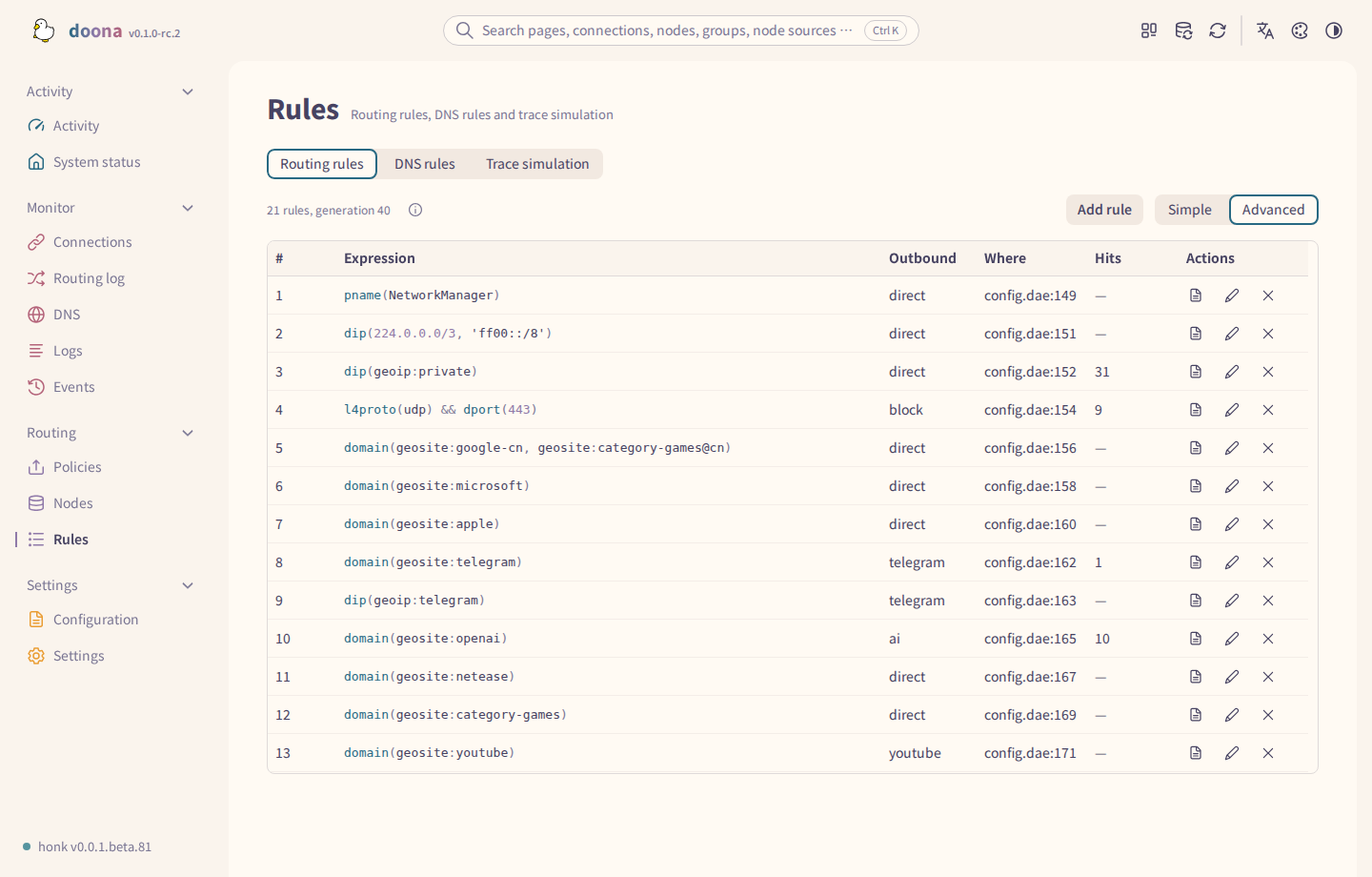
The first matching rule decides the outbound; the unnumbered last row is the fallback, and must locks the outbound. Edit rule and Remove rule need a writable file with complete text and a located rule.
Hits counts retained flow records whose rule_generation_id matches the list's generation_id, not a running total; the caption identifies that generation and the rule count. If the backend provides flows but no rule list, the view groups current-snapshot flows by rule, with Hits and Share instead.
In the flow-based list, Rule source filters where the rule was matched: kernel by eBPF, userspace by a userspace router, recomputed by evaluating the rules again, or unknown when the origin cannot be confirmed.
Open the source of a rule
- Open config file works on every row with a known source, writable or read-only, and opens the file at the rule's line; see edit a source.
- A rule from an include file outside a routing section cannot be changed in the list. Edit it in the file through Open config file.
Edit or remove a rule
- Choose Edit rule on a row. Change its conditions and target; representable expressions use condition rows, others remain editable as an Expression. All condition rows must match. A fallback edits only the target. Choose Edit rule to validate, write and reload.
- Choose Remove rule on a row. The dialog names the file and line it deletes. Confirm with Remove rule.
- Both commands write and reload after validation passes. The toast says the change is in effect; existing connections keep their current route until they reconnect.
- Disabled actions provide their reason through help controls when the file is read-only or incomplete, the rule's line cannot be located, or the rule is in an include file outside a routing section.
- In a connection's More actions, Edit matched rule's outbound settings opens Edit rule for the matched rule; it is not limited to changing the outbound.
DNS rules
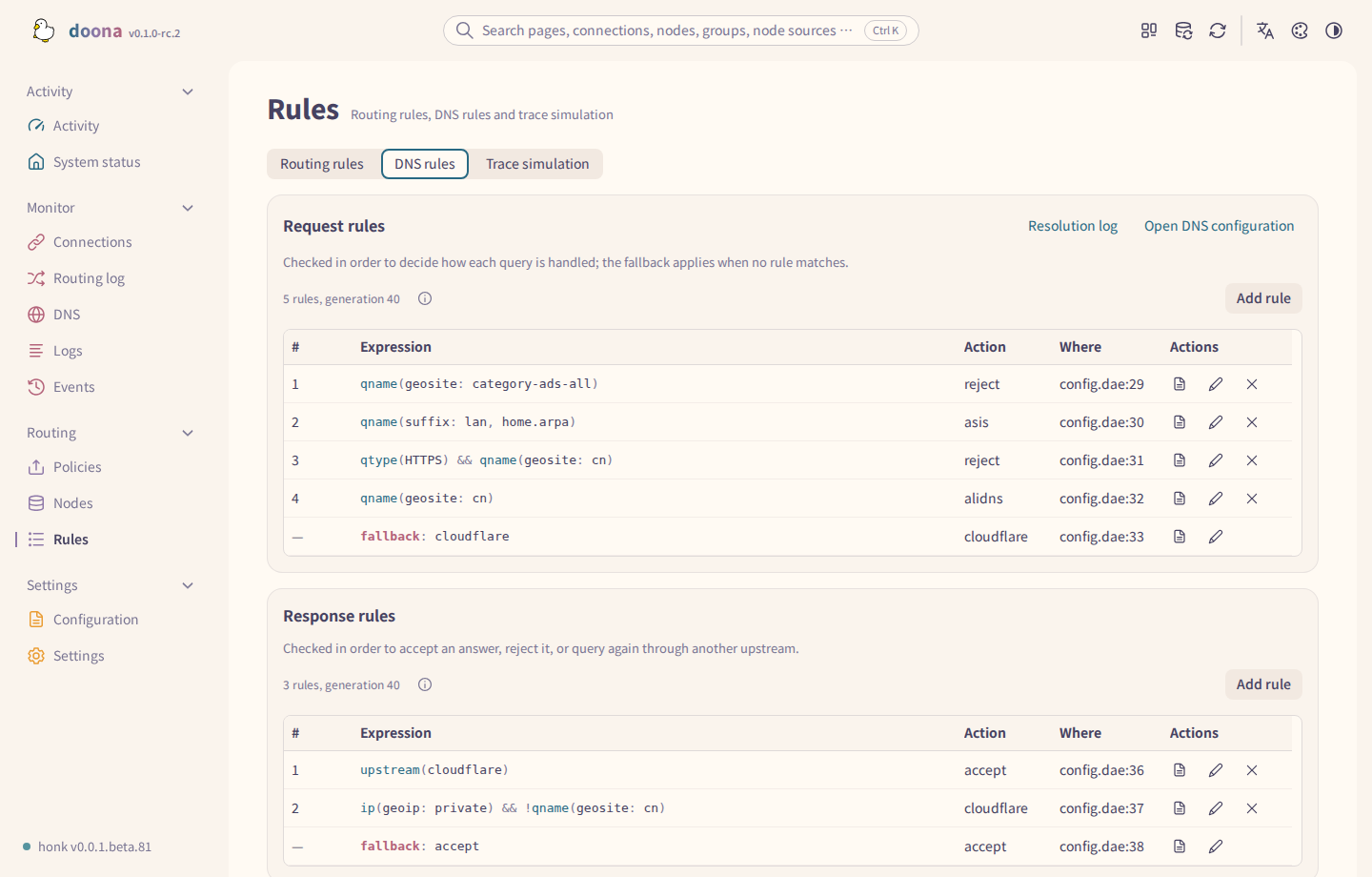
Both lists are checked in order. A response rule accepts an answer, rejects it or queries again through another upstream. Open config file also works for read-only files; Edit rule and Remove rule need write access.
Add rule in either list uses the rule-list dialog, with Action instead of Outbound and no Lock this outbound, and writes into that source's DNS routing section. Resolution log opens DNS; Open DNS configuration opens the configuration's dns section.
Add a rule
There are two dialogs. The dialog on a rule list writes the rule at once. The dialog opened from observed traffic can also hold the rule.
From a rule list
-
On Routing rules, choose Advanced if the view switch is shown, then Add rule above the list.
-
In Condition form, choose Select to pick a Match by kind (such as Domain suffix, geosite category or Destination IP) and enter Values, separated by commas. Add AND condition adds another condition; every row must match. Or choose Expression and type Condition, such as
domain(geosite:netflix).Switching from Expression back to Select converts the edited expression into condition rows. An expression the rows cannot represent stays in Expression with a hint. An empty expression resets to one empty condition row.
-
Choose the Outbound. It starts at the first group, or
directwhen there is no group. Turn on Lock this outbound to addmust. -
In Insert, choose Last, before the fallback, or Before rule N. The dialog starts at the first offered position.
-
Choose Add rule. doona adds the rule to the routing section of the source file, then writes and reloads after validation passes.
Domain keyword matches a substring of the domain. For example, tracker, ads produces domain(keyword: tracker, keyword: ads), matching either keyword. DNS rules offer the same condition as qname(keyword: tracker, keyword: ads). Outbound supports search and lists direct and block before groups; individual nodes are not offered. Insert supports search by rule text.
From observed traffic
These pages also open the rule dialog. Row icons work without selecting the row first.
- Connections: use a row's add-rule icon. The detail panel also offers Add rule when available. The toolbar has no add-rule button. See Connections.
- Routing log: use a record's add-rule icon. The detail panel has no add-rule button. See Routing log.
- DNS: use Add rule in the Query result or beside an answered address, or the add-rule icon on a Resolution log or Cache row. Domain rows open Rules > DNS rules > Request rules. When DNS rules are unavailable, they open routing rules. See DNS.
- Trace simulation: an evaluation card that offers it. See Trace.
In the dialog:
- When the traffic fits more than one list, choose the Rule list: Routing rules, DNS request rules or DNS response rules.
- When the traffic offers more than one condition, choose Match by. A DNS rule can also be limited to the query's record type.
- Choose the Outbound, or the Action for a DNS rule. No outbound is preset. The line under the choices shows the current one, and the dialog warns when your choice does not change where the traffic goes.
- Check Insert. When the rule the traffic matched is in a writable file, the default is Before the matched rule. The other choices are Last, before the fallback, and First.
- The preview at the bottom shows the rule line. A note appears when an earlier rule may still match the traffic first, or when the same rule is already listed or held.
- Choose Hold or Apply:
- Hold keeps the rule in the held list and writes nothing. The toast offers Review held rules.
- Apply writes this rule and reloads at once. The toast says the rule is in effect. For a routing rule it offers View rule; for a DNS rule added from a DNS query it offers Query again.
- When the configuration cannot be written, the dialog offers Copy rule instead.
Held rules
- Held rules stay only for the current browser session. Reloading the page drops them, so the browser asks before you leave while rules are held.
- The Rules page shows a Pending: N card above each list that holds rules. Each row shows the rule line and its position.
- Choose Discard held rule on a row to drop it.
- Choose Apply held rules on the card, or the counted apply button in the top bar, to write every held rule of every list. The card notes rules held in other lists, and the number of files when there is more than one.
- Rules are written one file at a time, and each file is validated and reloaded. Written rules leave the held list. If a file fails, the rules not yet written stay held, and the failure with its lines appears on the card.
- Reload honk in the top bar reloads the configuration already written; it does not write held rules. See the top bar.
Trace
Trace simulates rule evaluation against the current configuration. It does not open a connection to the destination.
Run a trace
- Open Rules, then Trace simulation.
- Choose the Network protocol (TCP or UDP). Enter a Domain, a Destination IP, or both, and a Destination port.
- Choose the Resolution mode: No resolution (none), Live resolution (live), or Resolve, then simulate (query). Live and query resolve the domain first, so they need a domain and an empty Destination IP. Only the modes the backend offers can be used.
- Expand Advanced to add a Source IP, Source port, Process name or optional DSCP integer from 0 to 63 for
dscp(...)rules. - Choose Run trace.
With only a destination IP, the simulation evaluates the IP and port. If dial_mode uses a domain-family mode, the engine reads the domain from real TLS or HTTP traffic and evaluates the rules again; include the domain to simulate that.
Read the result
- The status line shows the observation time and the
generationthe trace ran against. - With query resolution, a DNS query card shows the lookup. Query DNS and View cache open the DNS page for that name.
- Each Rule evaluation card shows the Decision (Determined or Indeterminate) and the Outbound. When earlier rules lacked inputs, it shows Likely outbound and Missing inputs; provide those inputs and run the trace again.
- When the outbound is a group, the card shows the Node chain and its Reachability. The test button measures that node; the View group and View node links open them.
- The table lists each rule with its Result (Matched, Not matched, Skipped or Indeterminate) and the inputs it was missing.
Add a rule from the result
Choose Add rule on an evaluation card. The dialog from observed traffic opens with conditions taken from the traced input. Choose Hold or Apply.