
First sign-in
This page opens doona in a browser, creates the administrator account and checks that doona shows the running honk. honk must be running, as Service management leaves it.
This page covers the standard edition; for doona lite, see doona lite.
Before you start
- A computer or phone on the LAN, or the gateway itself. honk accepts the administrator setup only from loopback, private or link-local addresses.
- The
listenaddress from Minimal configuration, such as192.168.1.1:9527.
1. Open doona
Open this address in the browser, with your address in place of 192.168.1.1:
http://192.168.1.1:9527/ui/
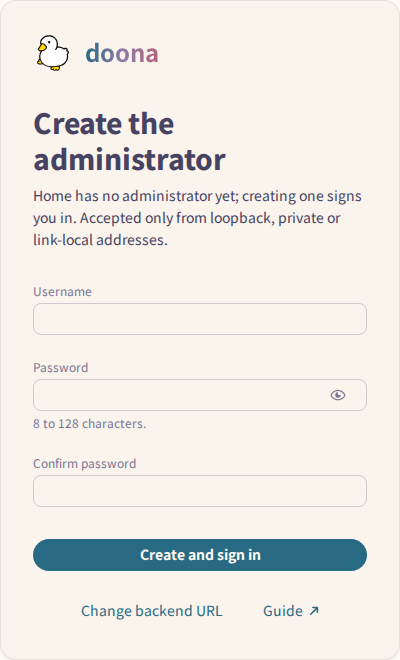
doona finds honk’s API at the same address and saves it as its backend. If no administrator exists, it opens Create the administrator.
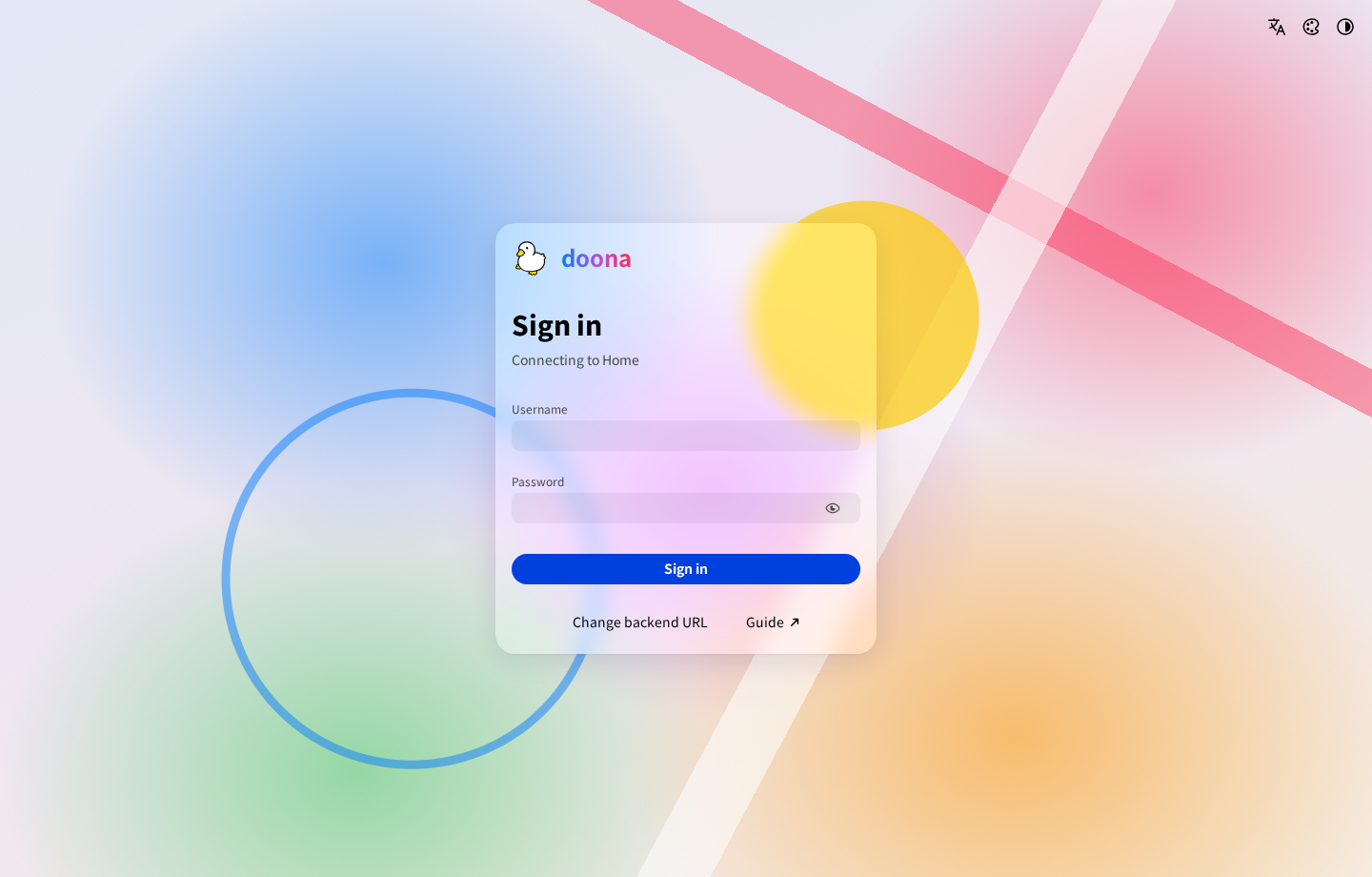
Use the three icons at the upper right to change Language, Palette and Color scheme before signing in. The sign-in form is one centered card on every screen size. With a Glass palette, a custom wallpaper also appears behind the card.
2. Create the administrator
- Enter a Username: letters, digits,
_,.and-, 1 to 64 characters. - Enter a Password of 8 to 128 characters, and the same password under Confirm password.
- Select Create and sign in.
doona signs you in and opens the Activity page. honk keeps the account in its state database, /var/lib/honk/state/honk.db (/etc/honk/data/state/honk.db on OpenWrt). From now on the page is titled Sign in and asks for this username and password.
The password session is kept in this browser and shared by all tabs on this origin. Closing a tab or the browser does not end it; sign-out, honk’s 401 response or deleting the profile clears it. honk limits sessions to 12 hours and forgets them when it restarts.
3. Check System status
Select System status in the side navigation. On a phone, select Activity in the bottom bar, then System status in the page strip. With honk running, it shows:
- Running at the top of the page.
- The Engine card: under Engine,
honkand its version; under API,daeuniverse/native v1 (draft); under Build, the honk commit and the build target you installed. - The Backend features card, listing what this honk provides, such as Connections, Logs and Configuration.
The backend indicator opens a popover with the honk version and connection state. Traffic counters stay at 0 until traffic passes through honk.
Setup is complete. To route LAN devices, add nodes and rules, see Configuration and Features.
If it doesn’t work
| You see | Cause and fix |
|---|---|
| The browser cannot connect | honk is not running, or the address differs from listen. Check step 3 of Service management and curl http://192.168.1.1:9527/api on the gateway. A firewall on the gateway can also block port 9527. |
| This honk build has no native API | The installed honk-core lacks the native API. Install the build from the doona release; see honk version. |
| The backend accepts administrator setup only from loopback, private or link-local addresses. | The browser reached honk from a public address. Open doona from a device on the LAN, or on the gateway itself. |
| The username or password is incorrect. | Enter them again. To replace a forgotten administrator, stop honk, run sudo /usr/local/bin/honk-core admin reset (without sudo in a root shell; on OpenWrt, /usr/bin/honk-core --data-dir /etc/honk/data admin reset), then start honk; the setup page opens again. |
| Token required instead of the setup page | api.dae sets secret instead of password_auth: true. Enter that secret as the token, or change api.dae as in Minimal configuration and restart honk. |
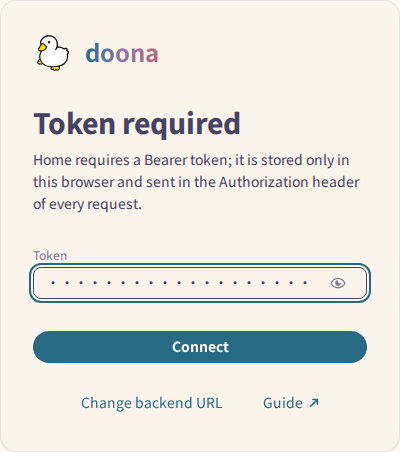
Enter the backend secret in Token, use the show/hide control to check it, then select Connect. doona saves the Token in the current browser's connection profile.
For more, see Sign-in problems.