# Interface tour
Find pages and controls in the standard edition after [signing in](https://doona.daeuniverse.org/en/first-sign-in.md). For the smaller interface, use [Common tasks in doona lite](https://doona.daeuniverse.org/en/lite-tasks.md).
## Find a page
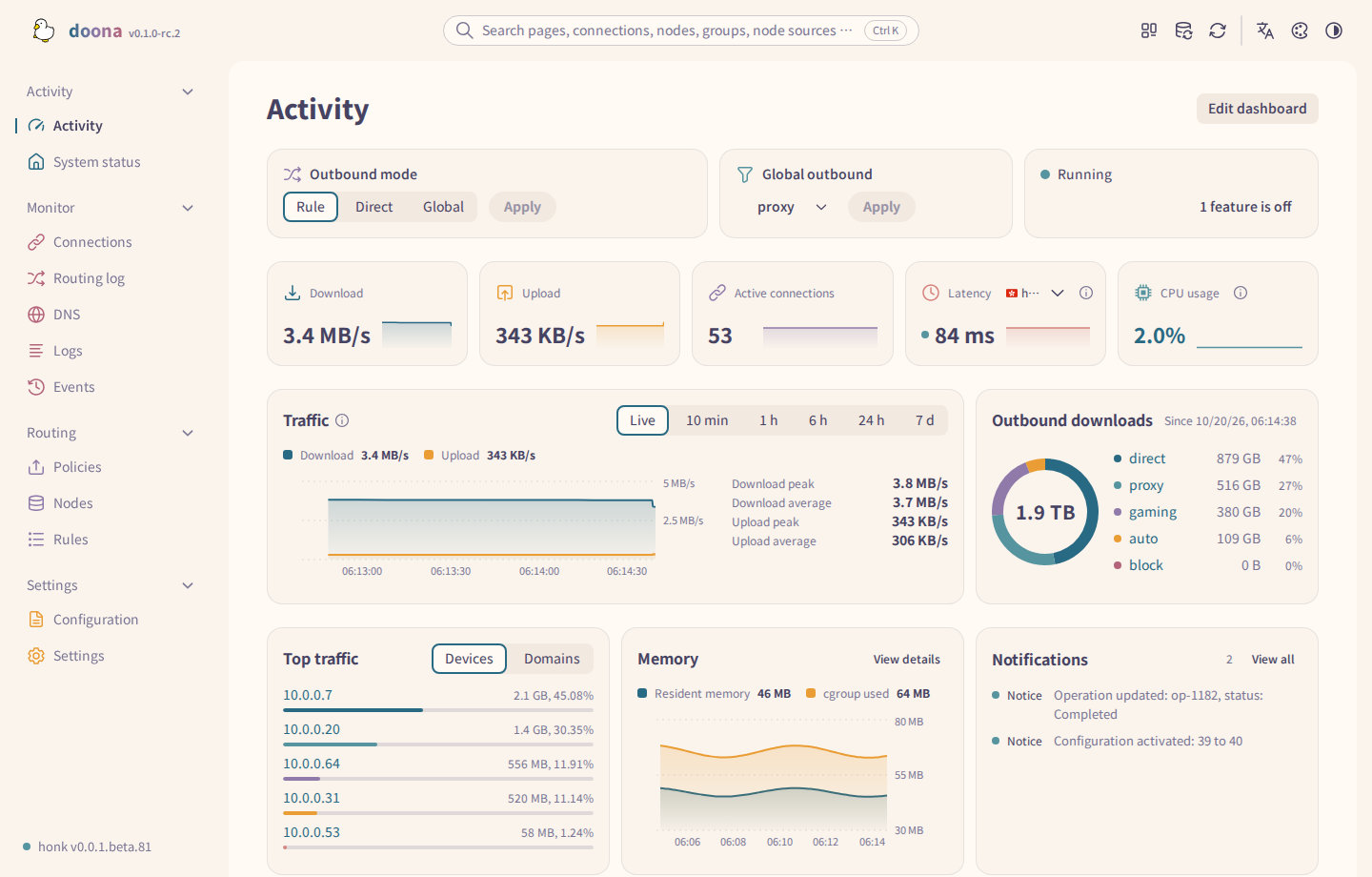
| You want to | Open |
| --- | --- |
| See traffic summaries or backend status | **Activity** or **System status** |
| Inspect individual connections and routing decisions | **Connections** or **Routing log** |
| Inspect DNS, diagnostic messages or backend events | **DNS**, **Logs** or **Events** |
| Choose a group member or manage nodes and rules | **Policies**, **Nodes** or **Rules** |
| Edit configuration sources | **Configuration** |
| Change browser preferences or use backend controls | **Settings** |
If a page or action is unavailable, check its [feature requirements](https://doona.daeuniverse.org/en/feature-requirements.md). Press `?` to open the keyboard shortcut list.
Press `g`, then a page letter within 800 ms, to open that page. For example, `g` then `r` opens **Rules**.
## Use search and the top bar
| Control | Use |
| --- | --- |
| Search, `Ctrl K` or `⌘K` | Find pages, settings and actions. Selecting a result opens its destination. |
| **Refresh** or `r` | Reread displayed data; **Data refreshed.** confirms completion. Does not write configuration or reload honk. |
| **Reload honk** | Request a configuration reload after confirmation; see [reload requirements](https://doona.daeuniverse.org/en/feature-requirements.md#req-reload-suspend). |
| Held-rule count | Apply the rules you have held; see [held rules](https://doona.daeuniverse.org/en/routing.md#held-rules). |
| **Theme**, **Language**, **Palette** | Change the interface's appearance or language. |
The held-rule apply button reports the rule count; its label includes the file count when more than one file will be written. Applying held rules and reloading honk disable each other while either action is running.
When the theme follows the system, the theme button selects the opposite color scheme; pressing it again returns to **System**. The **Palette** menu ends with **Appearance settings**, which opens the Appearance tab containing **Wordmark**.
Select the backend indicator in the sidebar to inspect the connection and engine version. Its popover also shows the API, **Backend URL** and saved profile, if any. **Edit backend** opens backend settings; **About doona** opens version details.
## Use panels
### Inspect a row
1. Open **Connections**, **Routing log** or **DNS** and select a row.
2. Read its details beside the list at widths of at least 1200 px, or in a drawer at narrower widths.
3. Use **More actions** for additional commands where available.
4. Select **Close** or press `Esc` to return to the list.
Tabs under a page title switch views within that page. For traffic fields and filters, see [Watching traffic](https://doona.daeuniverse.org/en/observe.md).
### Arrange the floating panel
1. Open **Panel options** → **Edit widgets**. In the three-column layout, the preview, gallery and settings scroll separately.
2. Select a **Speed** widget to change **Combine upload and download charts**. The switch appears for medium or large widgets using **Sparkline**. Turn it off for separate charts. Each widget keeps its own choice, including a saved split-chart choice.
3. Select **Save** to store the layout in this browser.
| Action | Result |
| --- | --- |
| **Pin panel** | Locks the position and size, including dragging, arrow-key movement, resizing and dragging into the sidebar. **Unpin panel** restores these actions. |
| Change pages | An unpinned floating panel collapses. Both traffic rates remain visible, even in a narrow panel. |
| **Hide at edge** | Hides a floating, unpinned panel at the window edge; both traffic rates remain visible on its handle. |
| **Undock** | Returns a docked panel to floating mode. The docked header has no title, and this button replaces the pin button. |
| Resize | A floating panel with no saved size is 280 px wide and can be narrowed to 200 px. Horizontal resizing lets its height grow with the content within the window. Resizing the top or bottom edge preserves the chosen height. |
For widget types and dashboard layouts, see [Widgets](https://doona.daeuniverse.org/en/features.md#widgets).
## Understand a write before confirming it
The meaning of a button depends on the control beside it. Rule **Hold** and **Apply** are described in [held rules](https://doona.daeuniverse.org/en/routing.md#held-rules); source writes, runtime changes and browser preferences are compared in [What doona can change](https://doona.daeuniverse.org/en/what-doona-can-change.md).
## Check the result
1. Read the success or failure notification after an action.
2. Reopen the edited resource and check its value.
3. For a routing change, follow the [tutorial's trace and connection checks](https://doona.daeuniverse.org/en/tutorial.md).
If a source write is refused, use [read-only sources and write failures](https://doona.daeuniverse.org/en/troubleshooting.md#read-only). Check [when changes take effect](https://doona.daeuniverse.org/en/what-doona-can-change.md) before retrying or restarting.
Press Enter in a single-line field to submit the sign-in form, runtime settings or the node, subscription, check, profile-name, custom-geodata-URL, rule and routing-template dialogs. While a modal dialog is open, notifications appear at the top center regardless of the saved notification position, with the dialog below them.
Tables, cards, charts and forms use placeholders while loading; sign-in and search use spinners. A button waiting longer than one second shows a spinner while retaining its size.
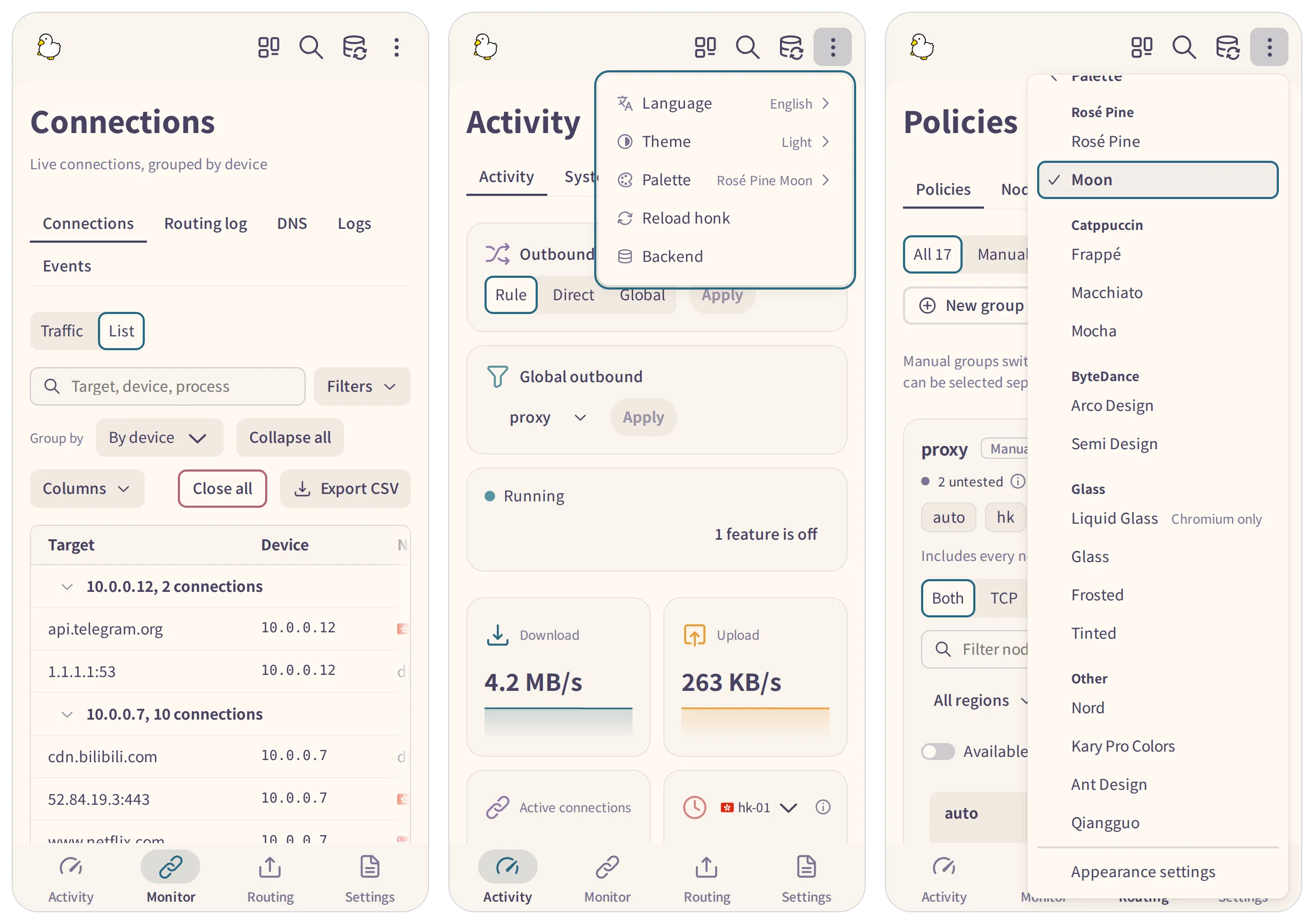
## Navigate on a phone
Below 1024 px, the bottom bar and page strip replace the sidebar. Choose a section in the bottom bar, then a page in the strip. Each section reopens the page last visited in that section during this browser session.
Search, **Refresh** and the held-rule apply button remain in the top bar. **More options** contains reload, language, theme, palette and backend controls. Page toolbars keep their first action visible and move the remaining actions into overflow. Below 600 px, pages use the phone spacing and wrapping layout.