
Watching traffic
Use Activity and System status to read engine health, and Connections, Routing log and DNS to inspect traffic. Logs and Events show the backend streams.
This page covers the standard edition; for doona lite, see doona lite.
Activity
Activity opens by default; Open at startup in Appearance picks another page.
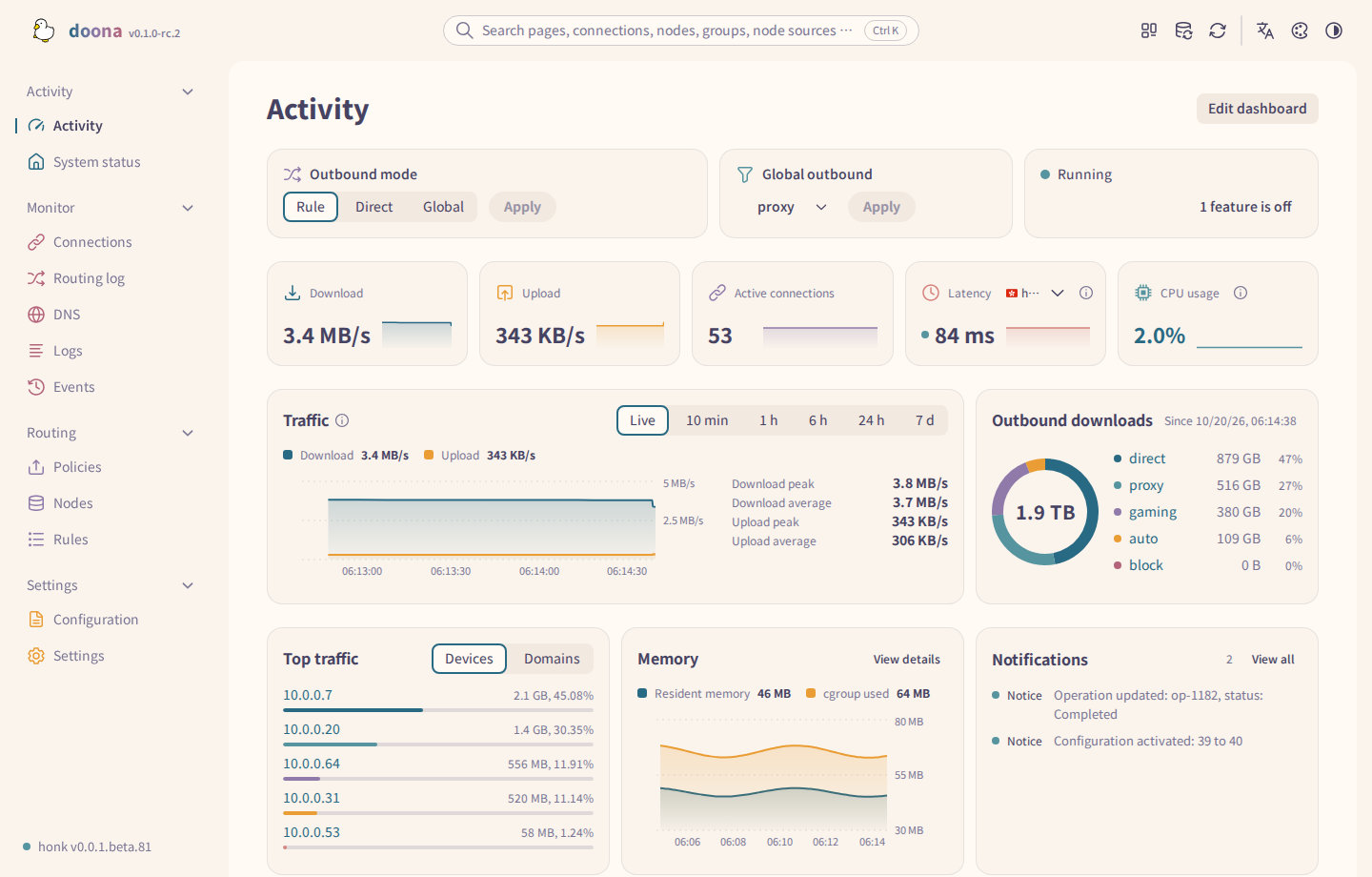
The status card shows the number of features that are off, or View details when none are; both open System status.
Getting started
When setup is incomplete and the backend provides the required data, Getting started shows three steps:
- Add a subscription or nodes. Add subscription opens the dialog on Nodes; adding a subscription or a proxy node completes this step.
- Choose routing rules. Choose rules opens Rules. An applied template or custom routing completes this step.
- Check the connection. Check connection opens Policies. Measure the selected node; a successful latency result for a node selected by a group completes this step.
The steps update automatically. The card hides when all three are complete or you press the close icon. doona remembers this in the browser.
Outbound mode
- In the Outbound mode card, select Rule, Direct or Global.
- For Global, choose an outbound in the Global outbound card. Until one is chosen, Apply stays disabled and the card shows Global mode needs an outbound. Choosing an outbound also selects Global.
- Select Apply beside the changed mode or outbound. doona writes the change into the main configuration and reloads it, and a toast confirms the new mode. Selecting a mode without Apply changes nothing.
If the card shows Read-only, doona cannot write the main configuration. Select Read-only to see the reason, then see read-only sources. If it shows Not provided by this backend, the backend does not offer a configuration this card can edit.
Cards
Download and Upload open Connections > Traffic, Active connections opens the list, Latency opens its node on Nodes and CPU opens System status.
- Latency follows one policy group's selected node. Automatic follows the group with the most active connections; the choice is kept in this browser and changes only this card.
- CPU and Latency draw trends after two samples. Failed probes leave gaps, and changing the group restarts the series. Settings > Appearance > Show trends on activity cards turns them off.
- Top devices / domains covers only the returned connection sample.
- If a runtime read fails, the last figures stay muted until a read succeeds.
- When an eBPF backend reports only userspace traffic, the Traffic title's help explains that kernel-forwarded direct connections are not counted. Connections > Traffic shows the same warning beside its title.
- Notifications folds identical notices into one row with a repeat count; its badge counts distinct notices. Stream ready events stay on Events, not this card. A flow gap without a record reads Flow records lost: recording changed.
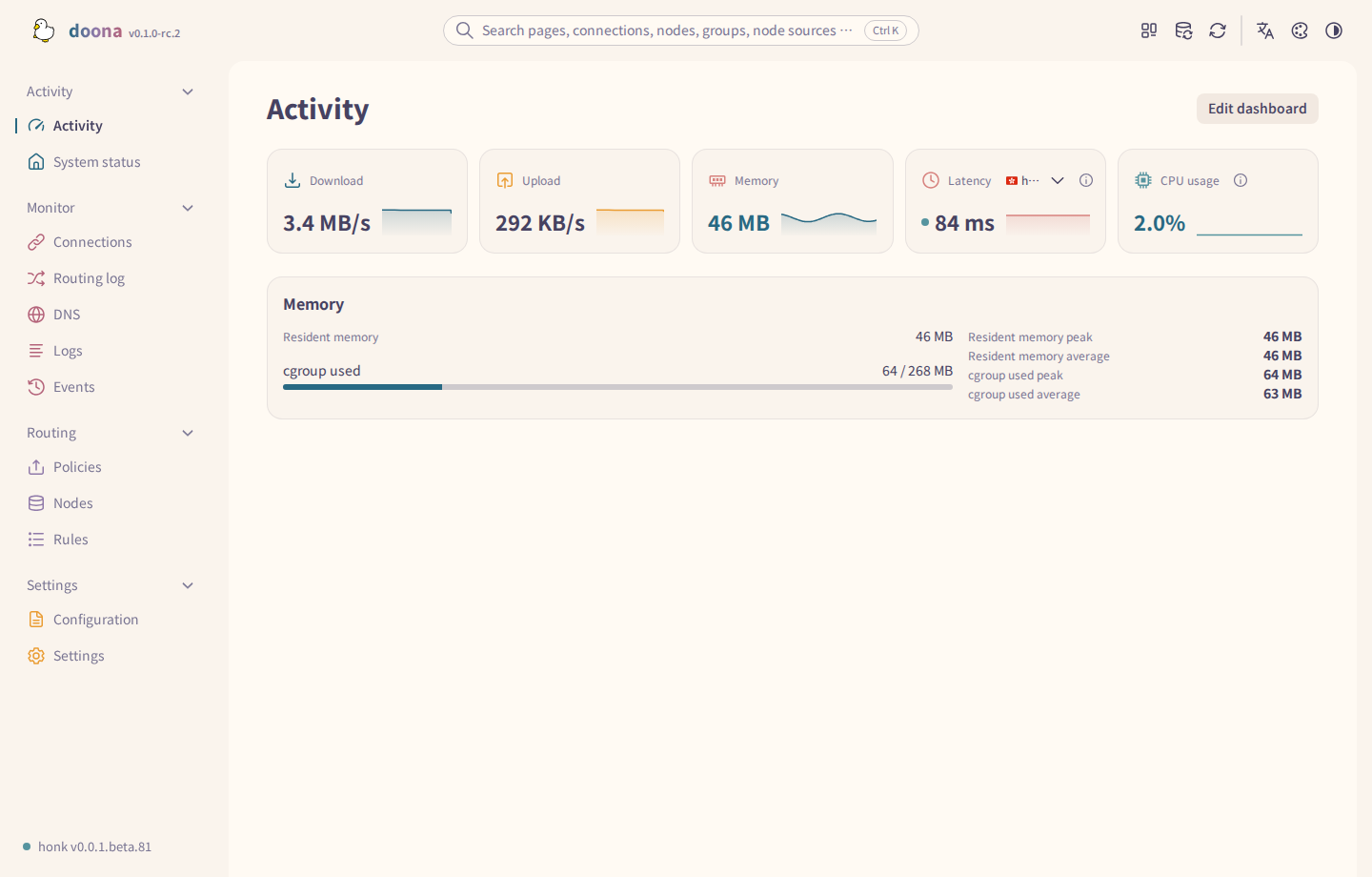
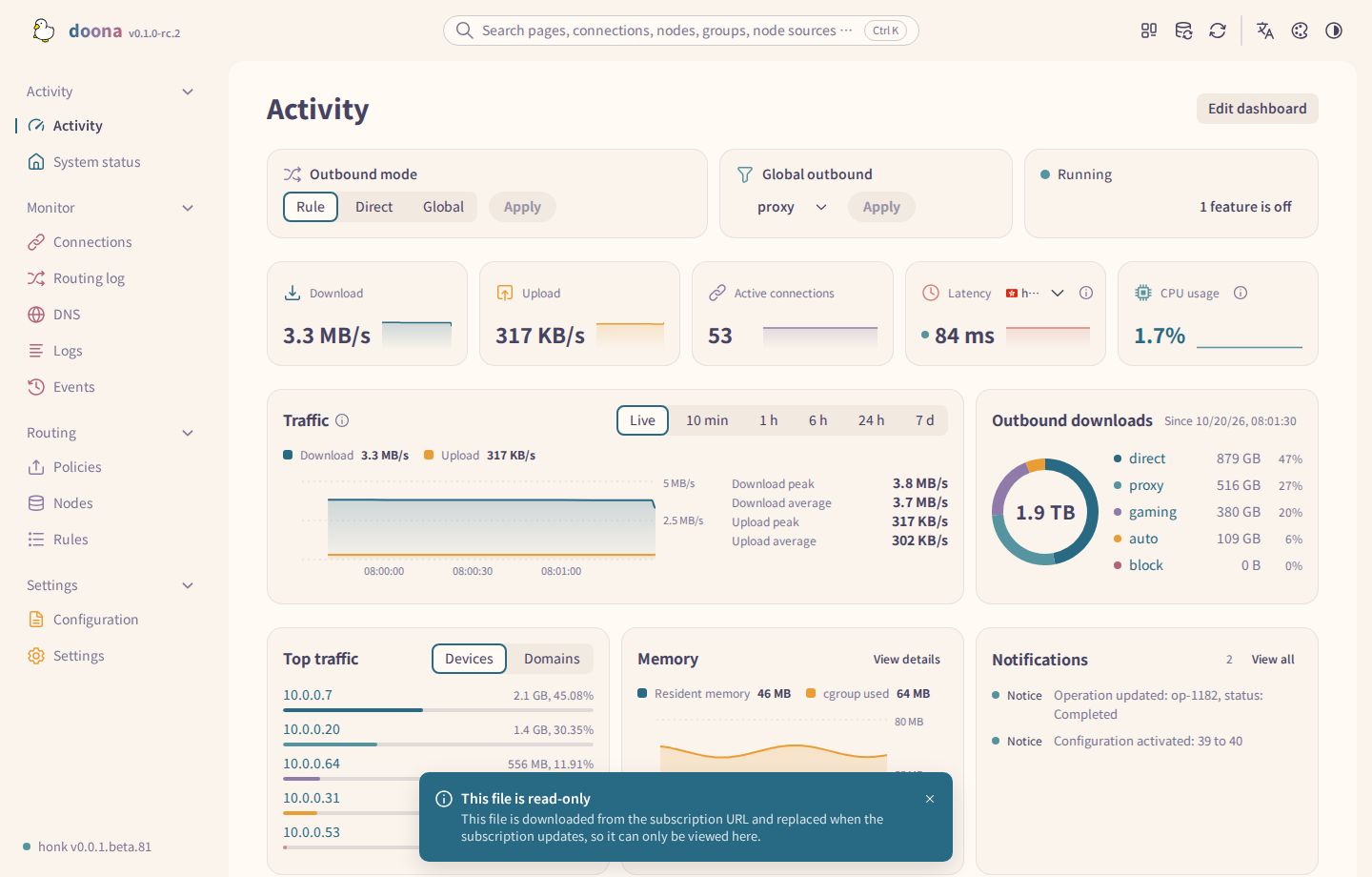
Edit the dashboard
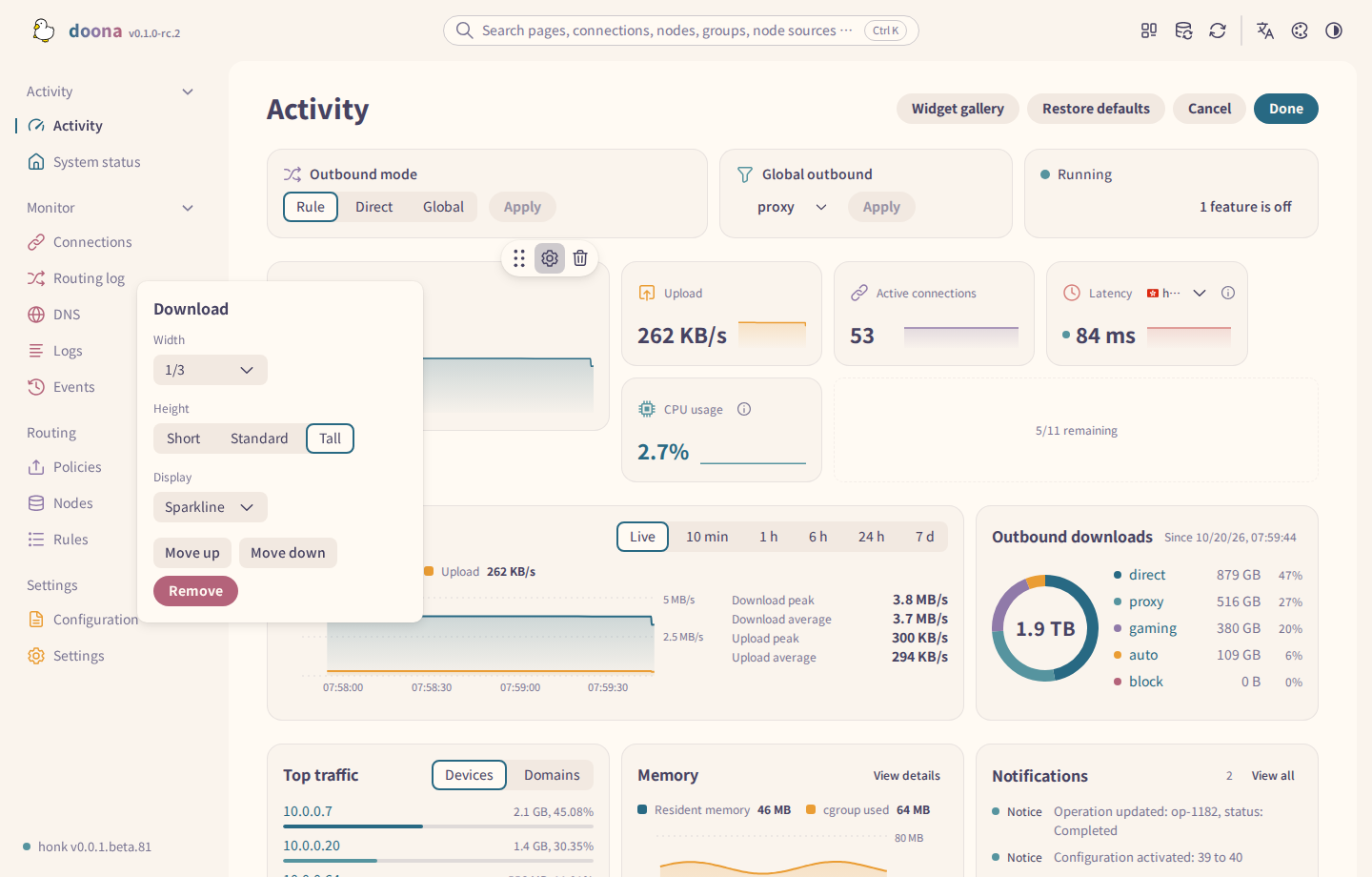
Sizes differ by card, and resizing one card leaves its neighbours alone. Remove offers Undo; Done saves the layout in this browser and Cancel discards it.
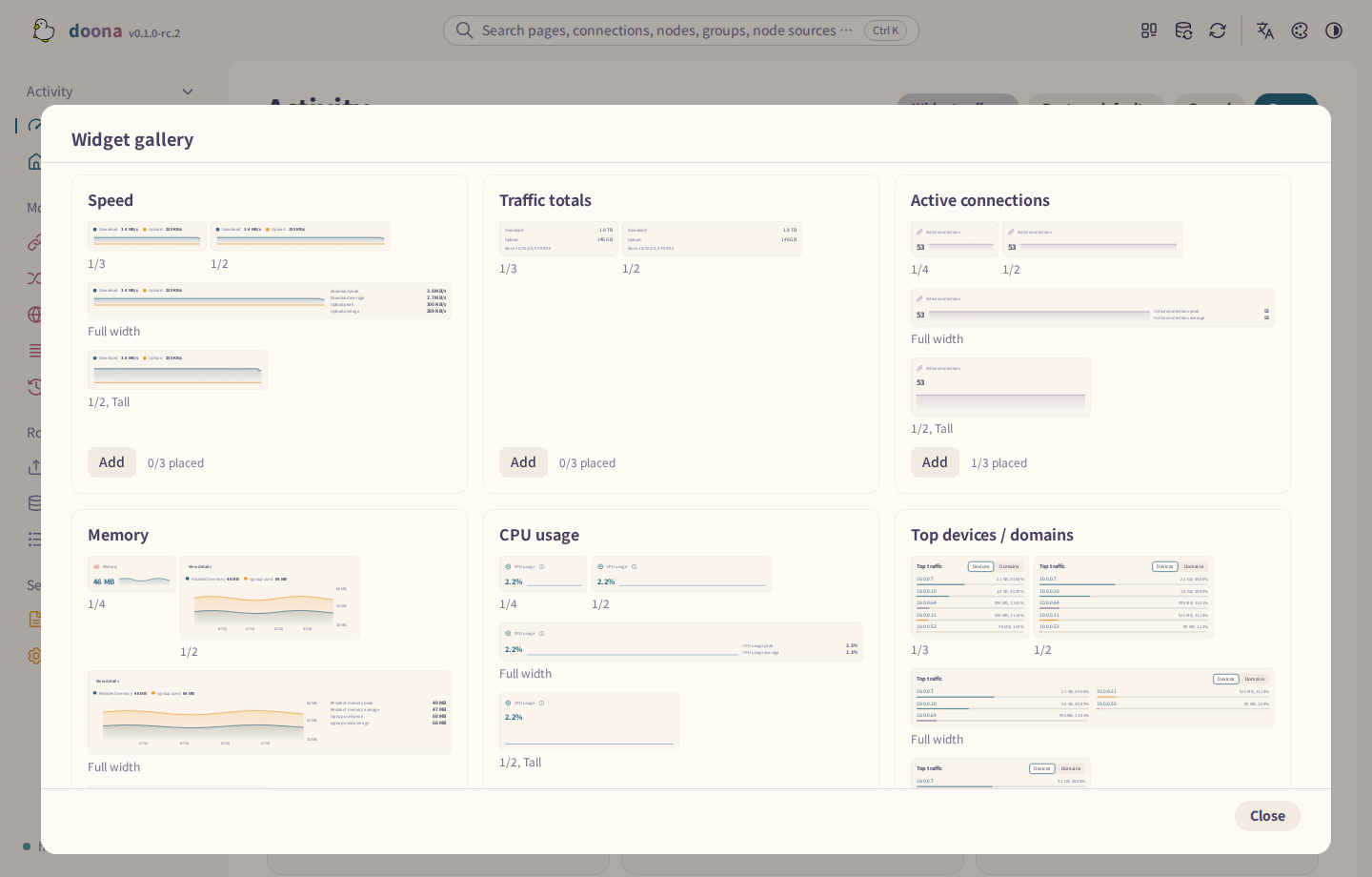
Each widget can be placed at most three times.
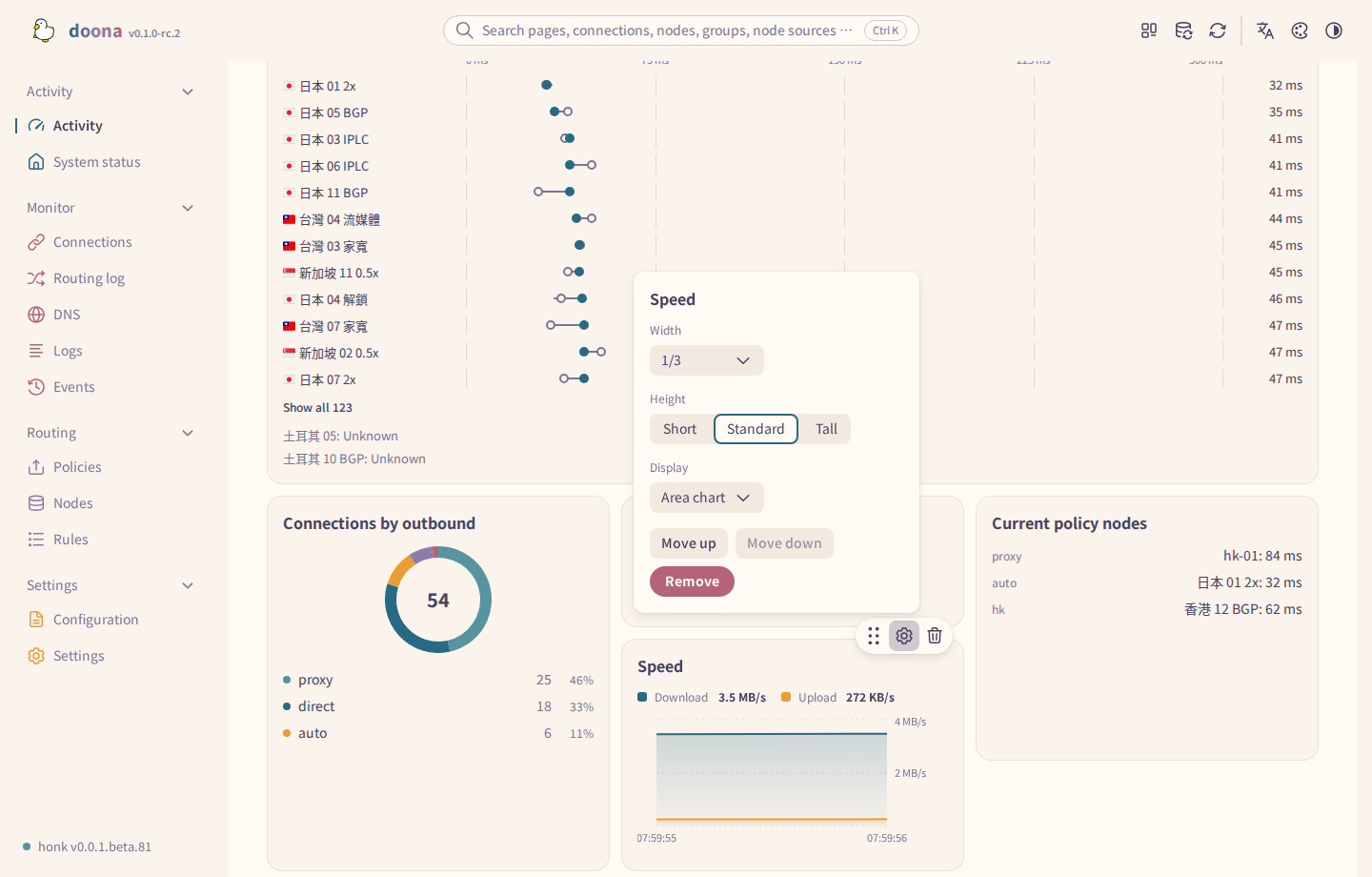
The default dashboard keeps Download and Upload as separate cards.
The gallery includes Subscription quota, Outbound failures, Node availability and DNS latency. Memory can be a chart or a Sparkline value tile. Wide cards show peak and average statistics beside their charts; see Widgets.
System status
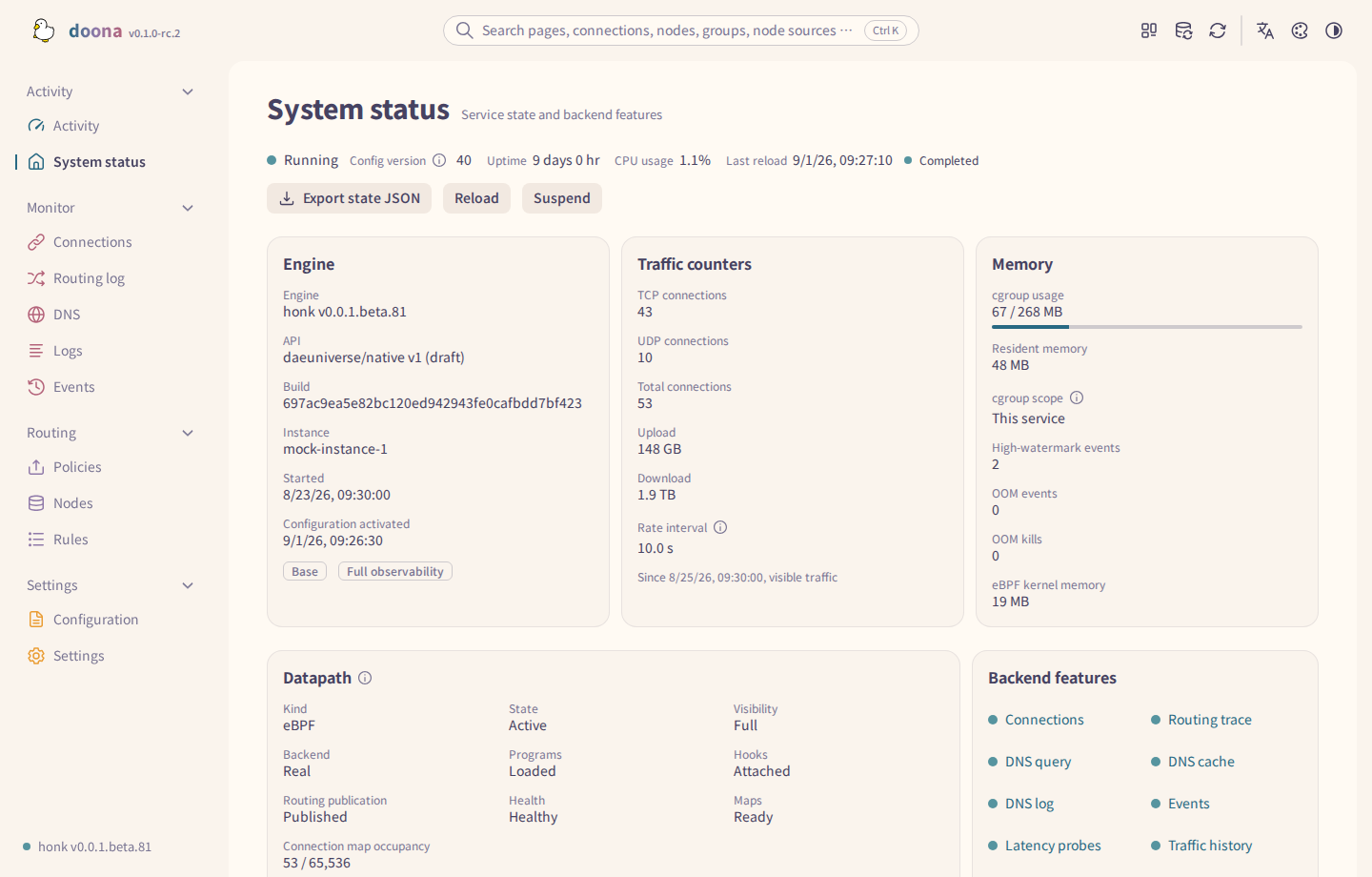
Open System status from the navigation, or from View details or the CPU usage value on Activity. The header shows the engine state, Config version, Uptime, CPU usage and Last reload. Config version identifies the configuration revision in effect; it is not the generation number.
- Engine shows the engine version, API, Build, Instance, Started and Configuration activated. A badge shows the backend's profile: Base or Full observability.
- Traffic counters shows TCP connections, UDP connections, Total connections, Upload, Download and Rate interval. The line below gives the counter start time and whether the counters cover all traffic or visible traffic.
- Memory shows Resident memory, the cgroup figures and OOM events when reported. Its named meter compares cgroup usage with a nonzero limit; zero or missing limits show no meter.
- Datapath shows the checks of the eBPF programs, hooks and maps in the kernel, and an Attachments table. Datapath errors and runtime degradations appear as warnings under the card.
- Backend features lists the features the backend provides. Select one to open the page that uses it.
- Features that are off appears only when some features are off. Each row names the cause and the affected features. How to turn on shows the settings to add; Possible causes explains why; other rows link to Temporary runtime overrides or Geodata in Settings, or to this guide.
- Select Export state JSON to download the reported state. Reload, Suspend and Resume appear only when the backend allows them; a toast reports each result.
Status cards keep their space with skeleton placeholders while data loads. Loading notices show a progress circle. Meters expose their names and value text to assistive technology.
Connections
Connections opens on the Traffic tab; a link that filters the list or selects a connection opens the Connections tab.
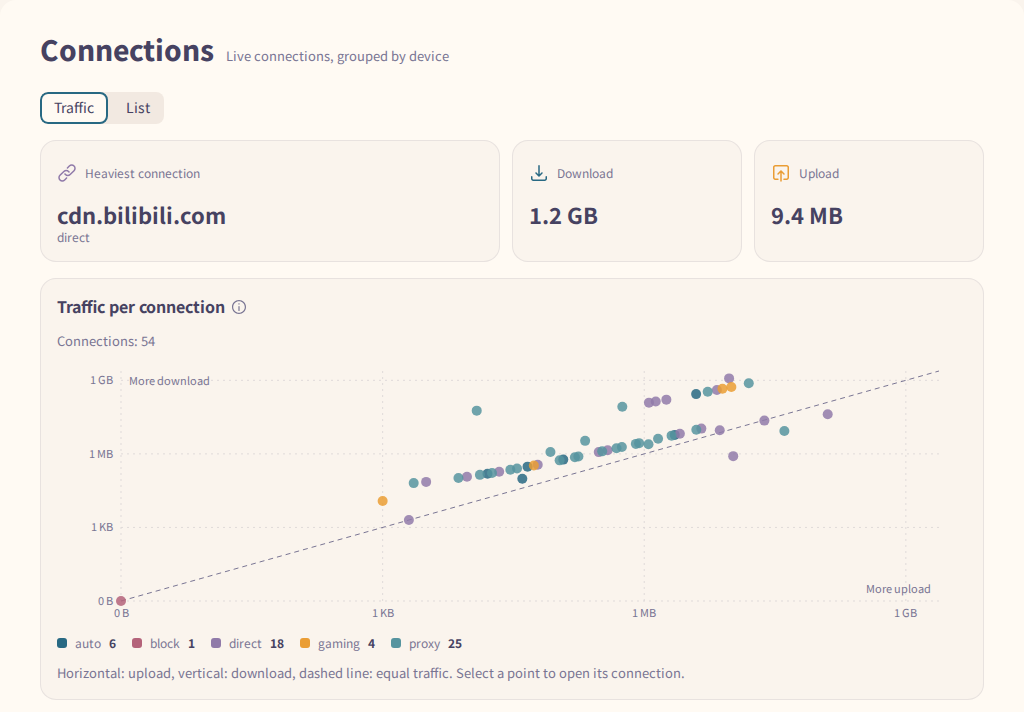
Select a point to open that connection. Node latency is not limited to TCP probes.
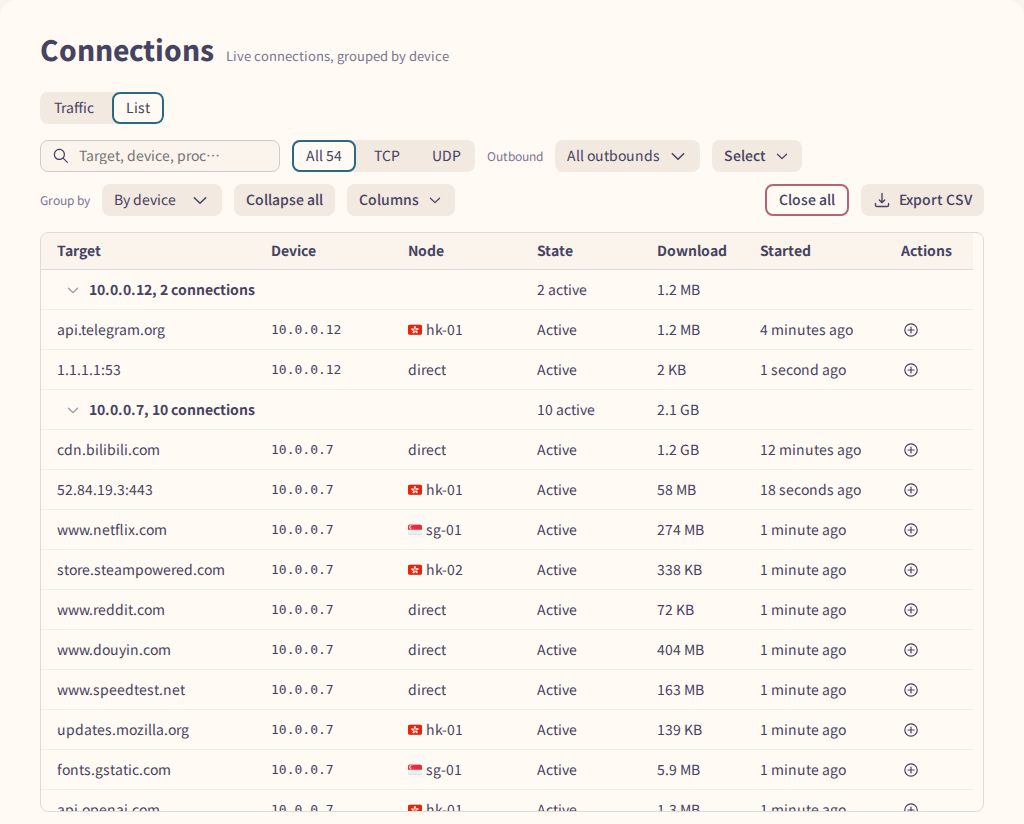
- Filter also matches the outbound, chain and rule. Export CSV downloads the filtered list.
- A truncation notice, Partial connection visibility or No connection visibility means an empty list does not prove the device has no connections.
- A row's add-rule icon opens the rule dialog. A disabled icon means the connection has no domain or IP address to match.
- More actions offers Show matched rule, Edit matched rule's outbound settings, View flow, Trace this connection (Trace), Only this device and Close connection. Close connection is disabled for connections observed only by eBPF, because the kernel forwards them.
- Close all with only a device and network filter closes every matching connection, including ones opened after the dialog. Any other filter, or a truncated list, closes the listed connections one by one. Kernel-direct connections are skipped.
Routing log
Routing log shows how honk routed recorded flows, on a Map and in Records.

Show the N flows on this path opens Records filtered to the pinned path; Clear path filter removes the pin.
In Records, select a flow to read its trace. A Partial trace states Why incomplete. View connection opens the live connection if it still exists. The add-rule icon is on the record row only. Recording settings opens Temporary runtime overrides.
DNS
DNS has Statistics, Resolution log, Cache and Query tabs, as far as the backend supports them.
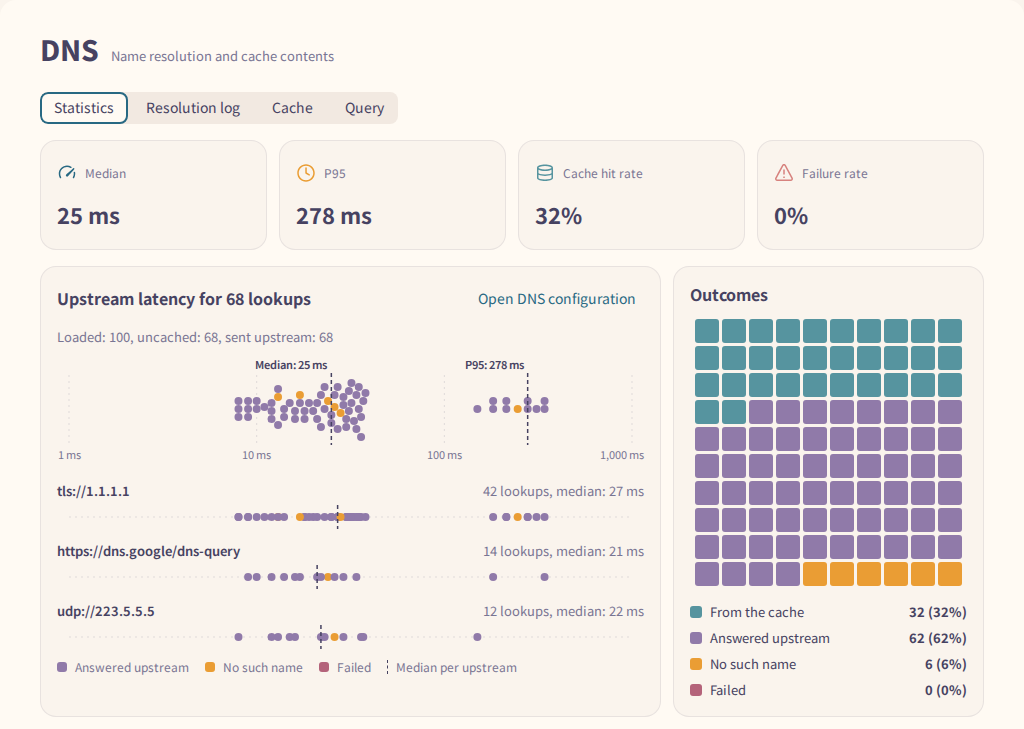
- Statistics covers only the latest page of the resolution log. Select a top query to open Resolution log filtered to it.
- In Resolution log, a row's add-rule icon opens a DNS request rule for the exact domain, or a routing rule when DNS rules are unavailable. Choose Domain suffix to include subdomains. Export CSV covers only the loaded records.
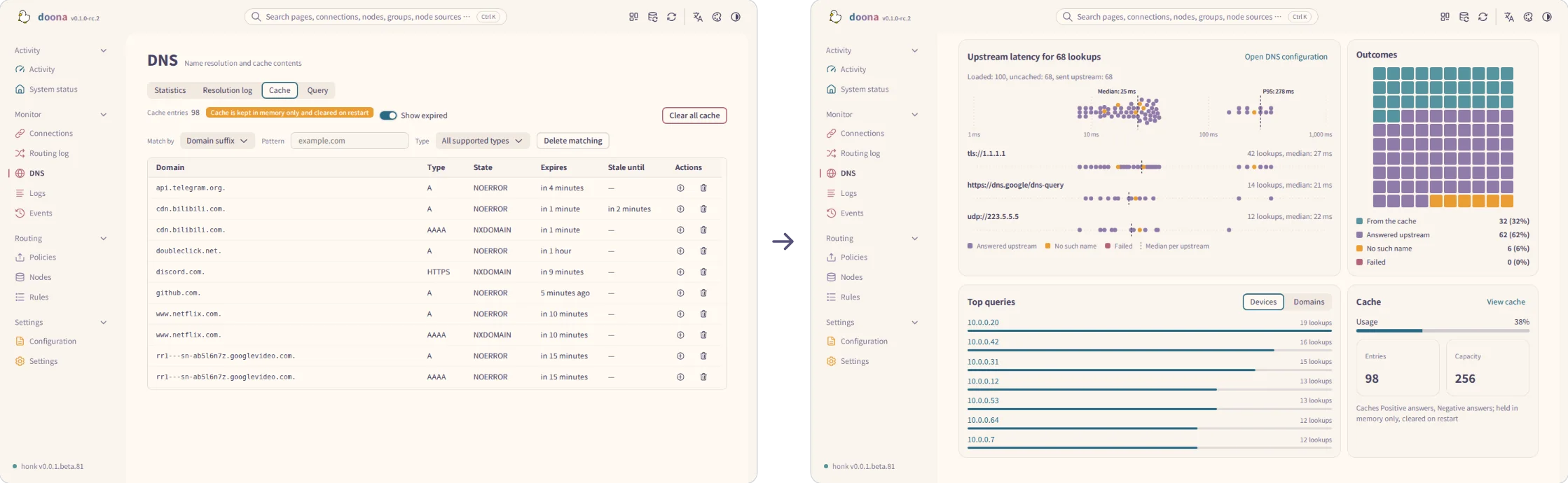
- Cache lives in memory and is cleared on restart. Show expired includes expired entries on request. Its meter compares usage with a nonzero entry capacity; zero capacity shows no meter. Cache filters entries by full name, suffix, keyword or regex, by record type, or both, even when the backend does not support deletion. When the backend supports deletion, you can delete matching entries after confirmation. The confirmation shows the matching count. Clear all cache cannot be undone.
- Query results are diagnostic and do not appear in Resolution log. Upstream offers Automatic, which follows
dns.routing, or a nameddns.upstream. Bypass cache is off by default.
An empty cache shows No cache entries. When filters match no entries, it shows No matching cache entries.
Keywords match text anywhere in the name: cdn matches cdn.example.com. The suffix cdn matches only cdn or names ending in .cdn. A record type further narrows the results. Clear filters resets the matching criteria and removes any domain filter from the page URL.
Logs
Logs streams the engine log.
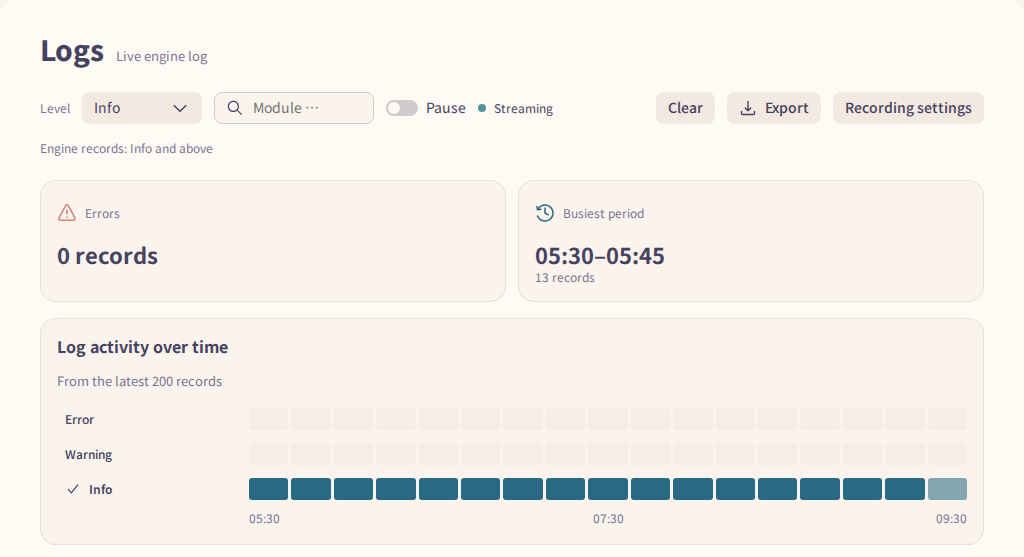
- Levels below what the engine records are marked; lower the engine's level under Recording settings in Temporary runtime overrides.
- Pause keeps only the newest records until you resume. Clear empties this page only; Export downloads the received records. Each row’s Copy record button copies it in the same format as Export.
- After a reconnection, retained records are replayed; the list marks a gap when replay is no longer possible.
- Log recording is disabled in the configuration means you must change the honk configuration; Turn on log recording in Settings first means Recording settings is enough.
Events
Events shows the backend's event stream, newest first.
- Kind starts at Exclude runtime updates. Choose All kinds, or one kind the backend advertises.
- The list shows Time, Kind and Summary. The toolbar shows the connection state, the number of events kept and, when available, Resumes from the last position.
- Select an event to read its full summary. A Configuration activated event links to View configuration. A Flow records lost event links to View flow record and Recording settings.
- Select Export JSON to download the events currently shown. Each row’s Copy record button copies it in the same format.
After a disconnection, retained events are replayed. If the replay cursor has expired, a row in the list marks the lost events.